Vanbreda App
Step-by-step guide: how to register on the Vanbreda App with email
Secure access to your healthcare files? With your email address, you can log in safely to the Vanbreda App and the web portal. This gives you easy access to report hospital admissions, submit outpatient expenses and more. Follow the simple step-by-step guide below to create your account using your email to log in.
Tip: Want your app registration to run even more smoothly? Provide your email address (and those of your family members) at least two days before signing up via app.vanbreda.be/support > Digital > I’m going digital. This way, you’ll receive future updates immediately via email instead of by post.
Prefer to register using itsme® instead? Read the step-by-step guide on how to create an account with itsme®.
STEP 1
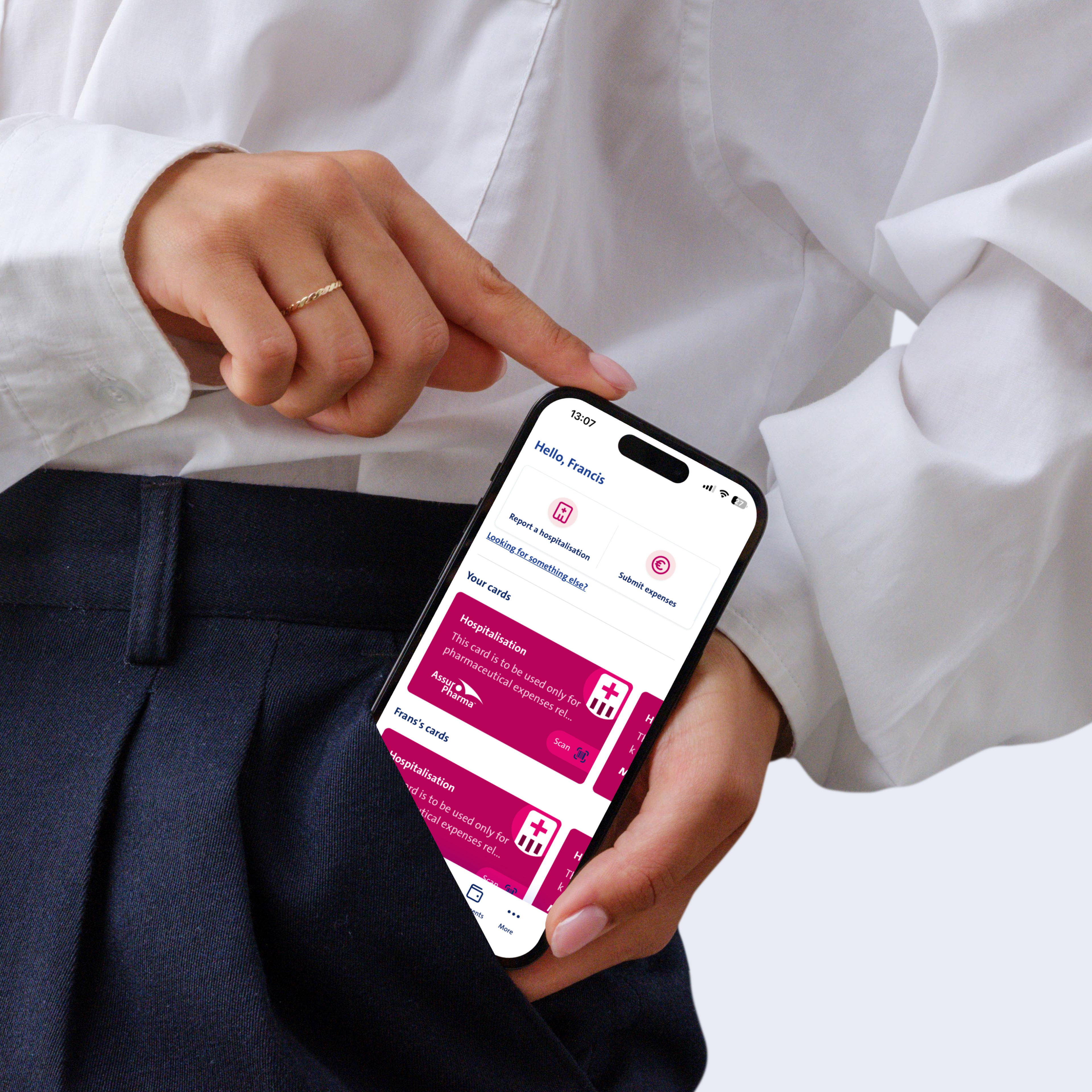
Download the Vanbreda App
Download and install the Vanbreda App on your smartphone. Or visit app.vanbreda.be and create an account via your computer.
STEP 2
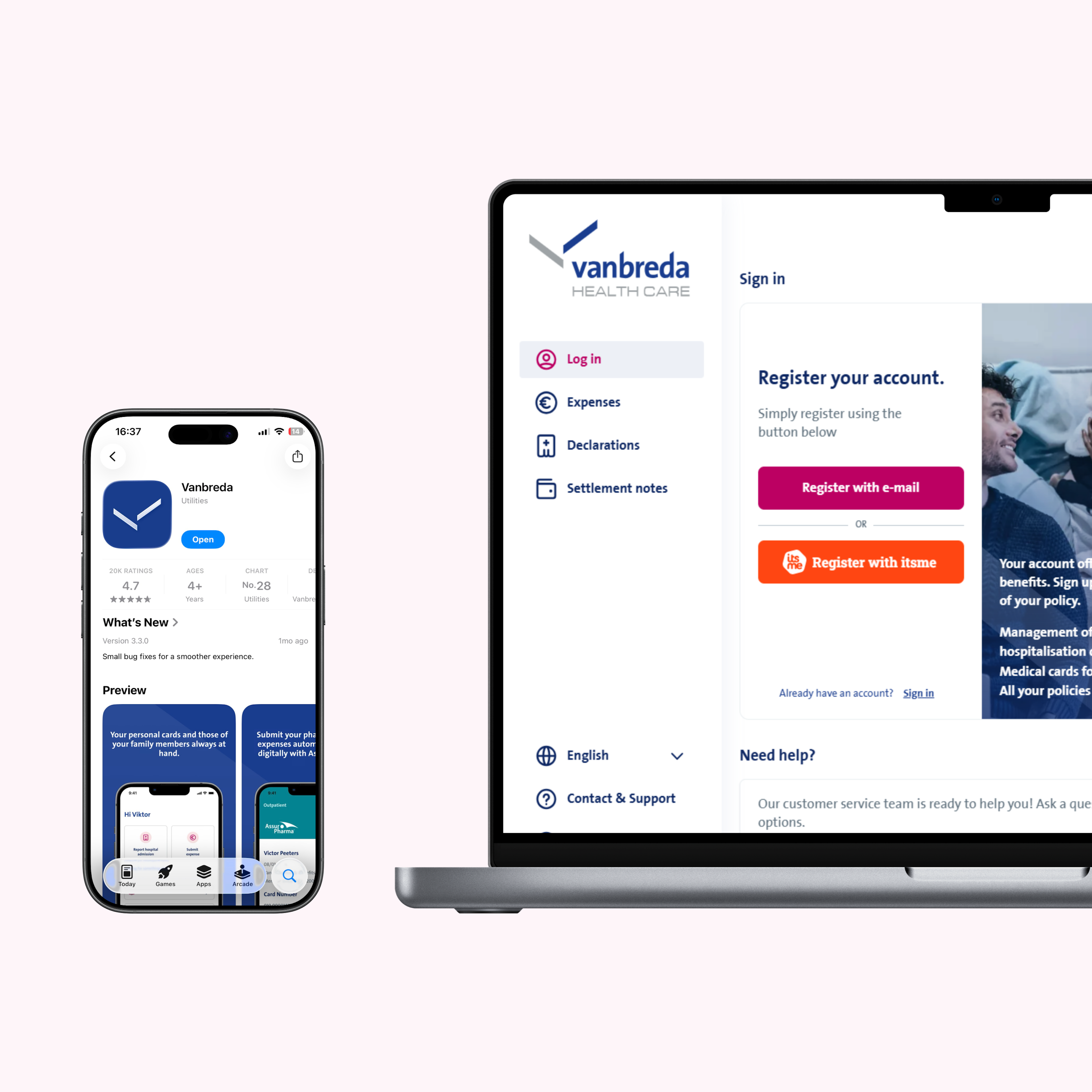
Register with email
Open the app and select ‘register with email’.
STEP 3
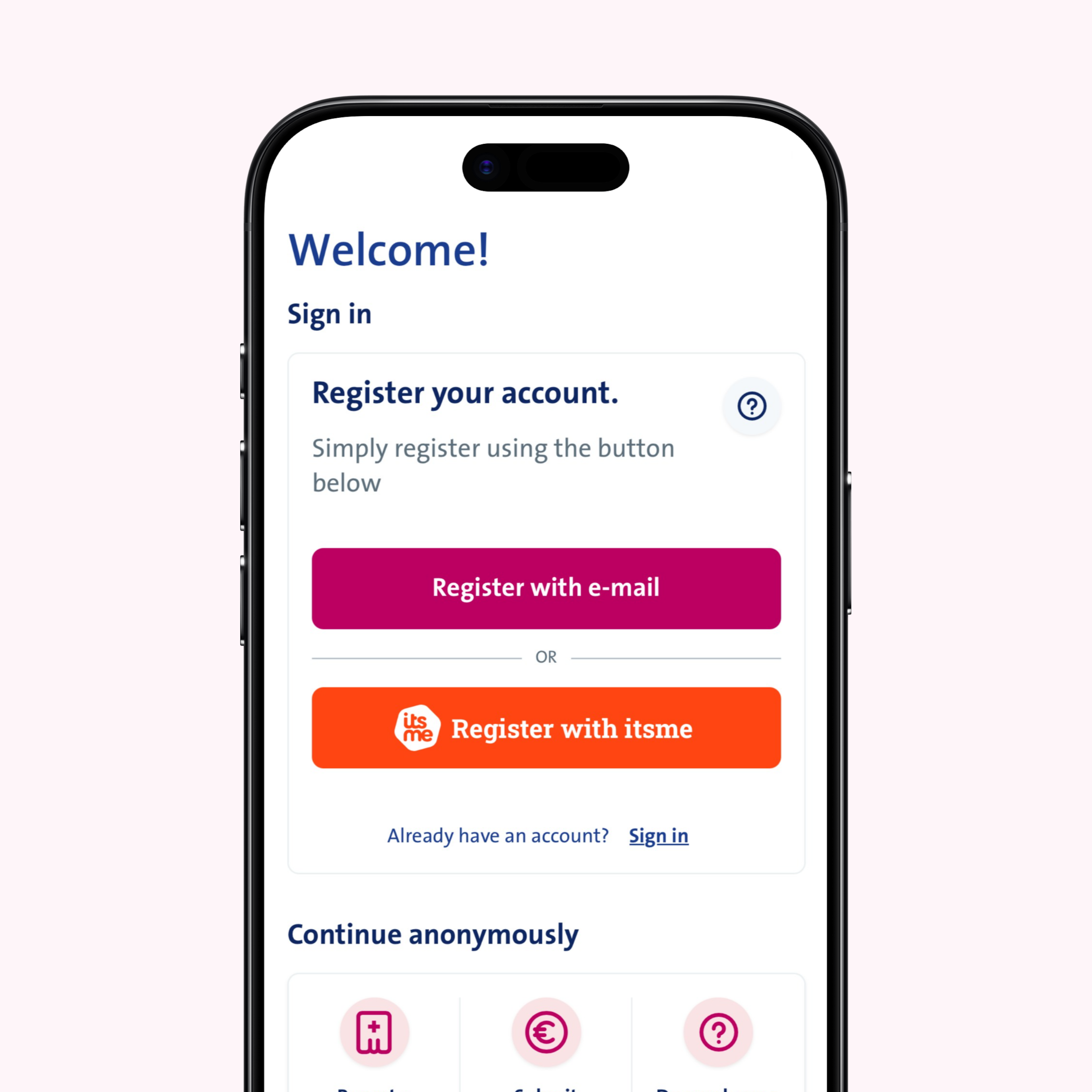
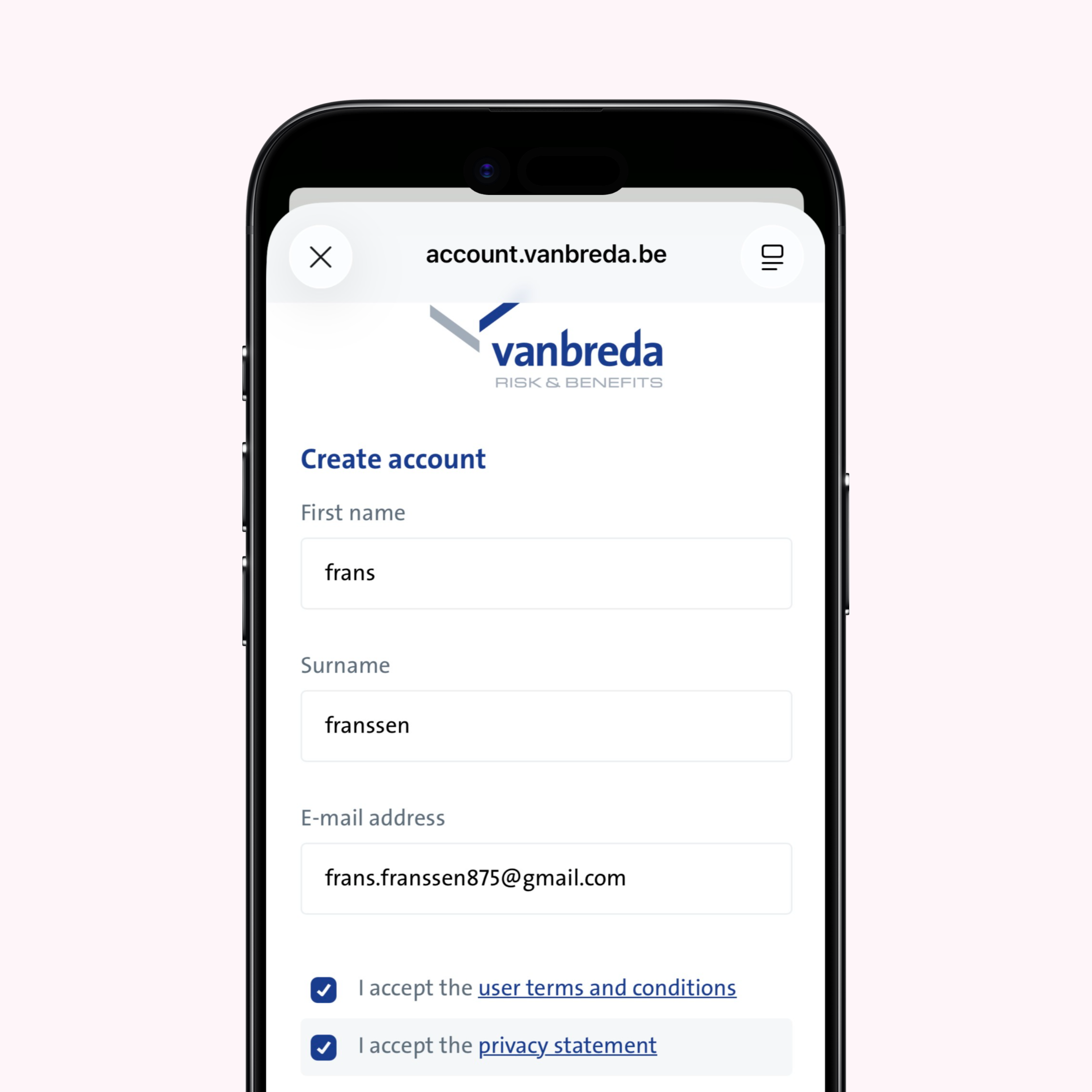
Enter your details
Enter your first name, surname and email address in the form. These details are required to create your profile.
STEP 4
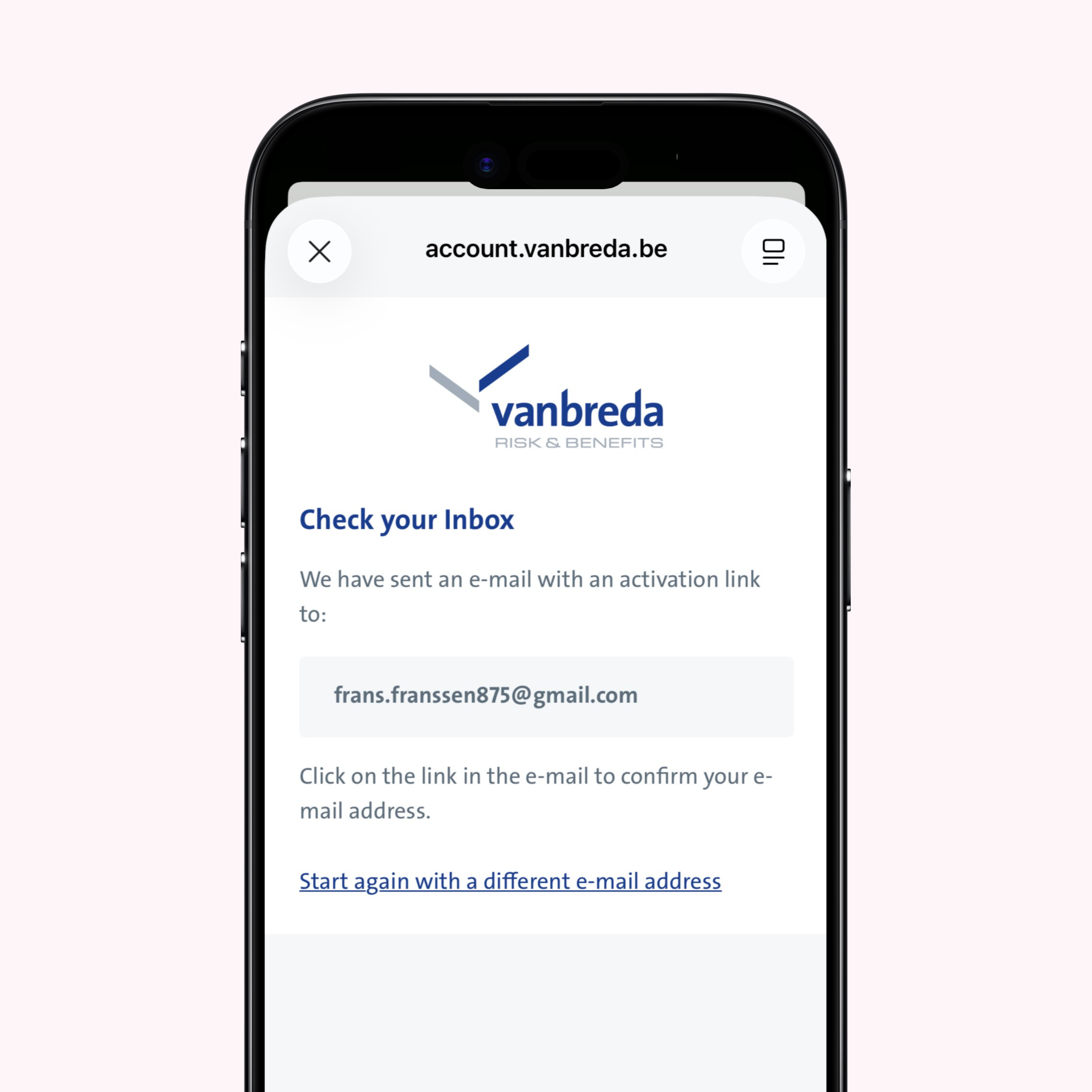
You will receive a confirmation email
We'll send a message to the email address you provided.
STEP 5
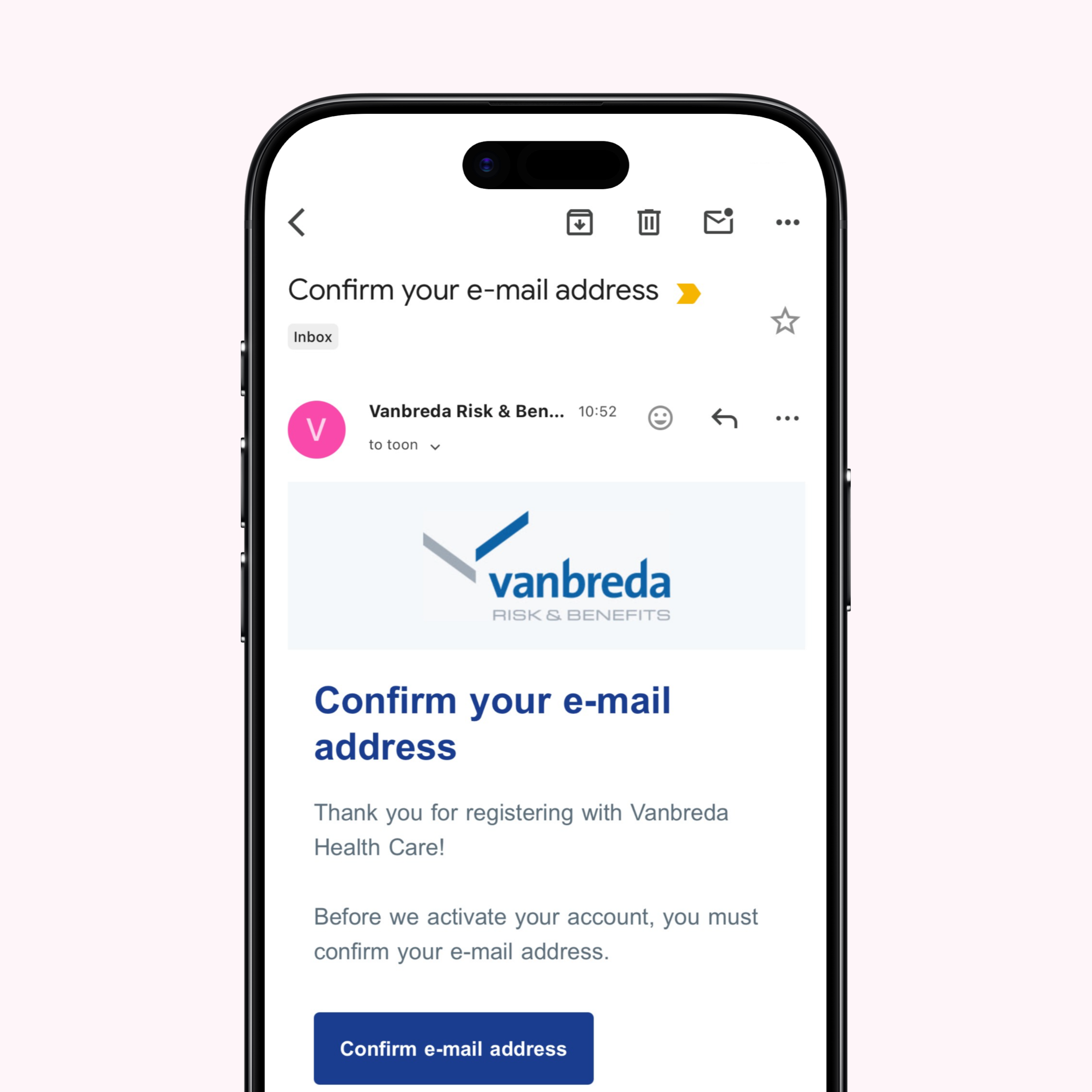
Confirm your email adress
Check your inbox and open the link to confirm your email address. This allows us to verify that it’s really you who’s creating an account.
STEP 6
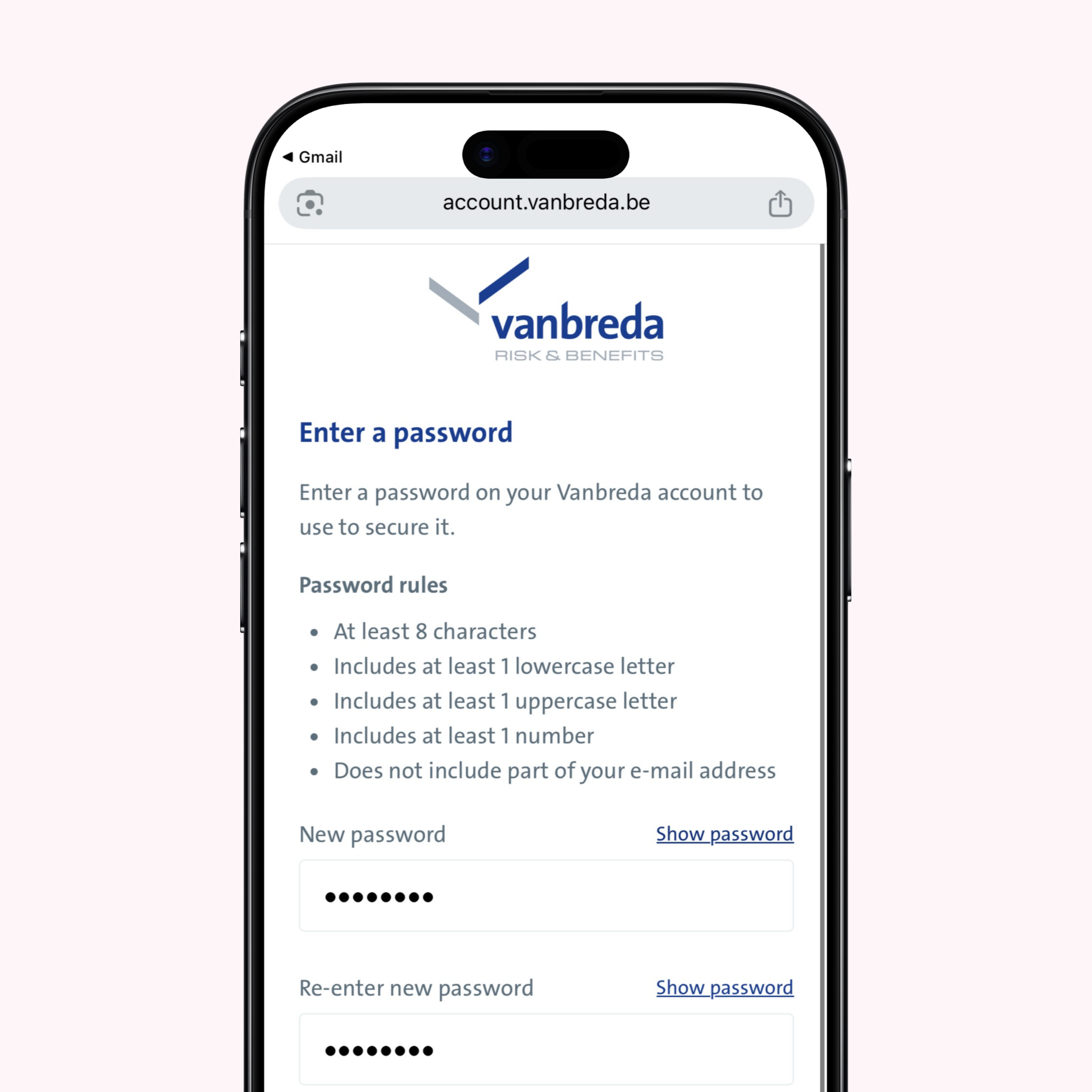
Set your password
Set your password to secure your personal account. You will need this password to log in.
STEP 7
Your account has been created
You can now sign in using your email address and password. Select ‘Sign in’ to go directly to the Vanbreda App.
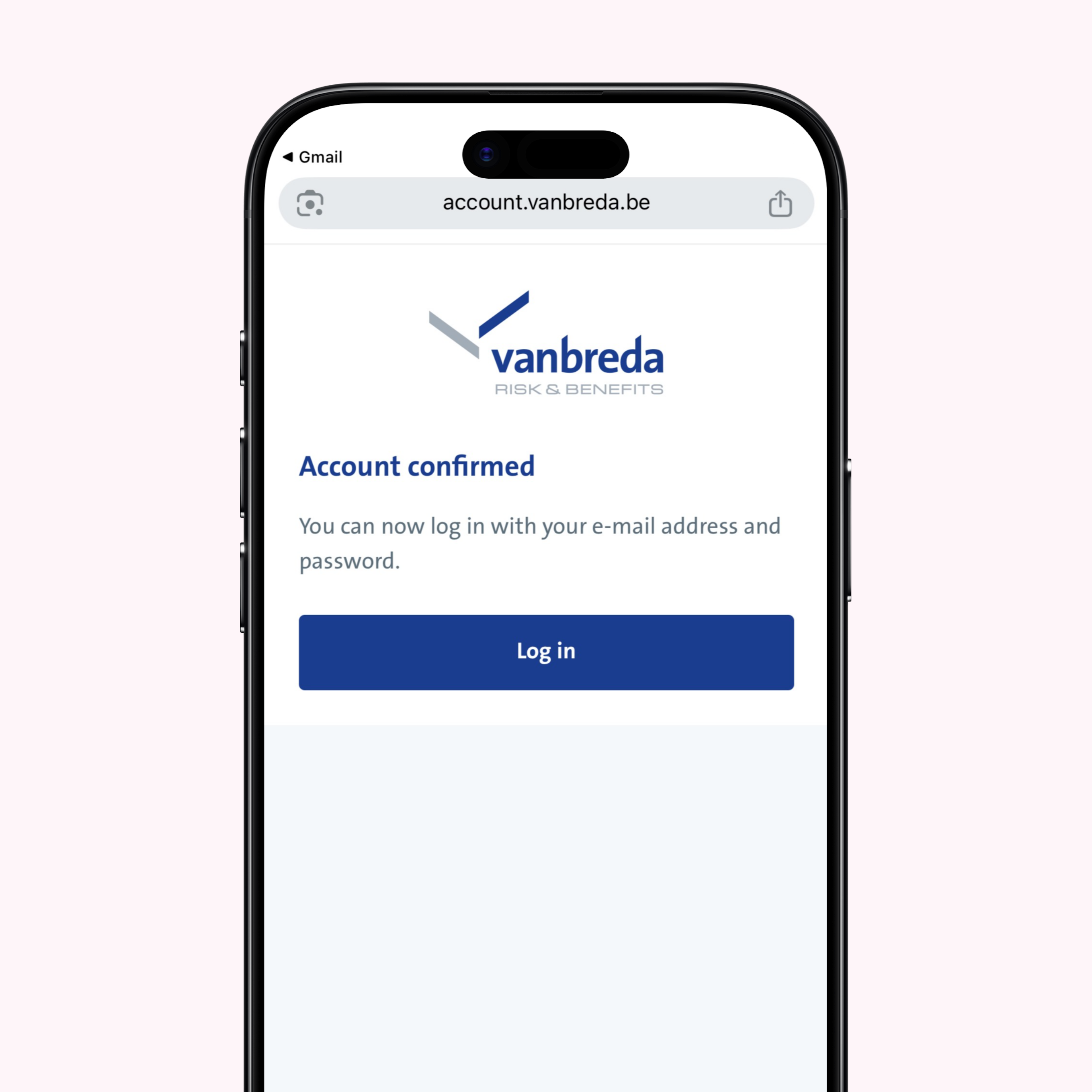
STEP 8
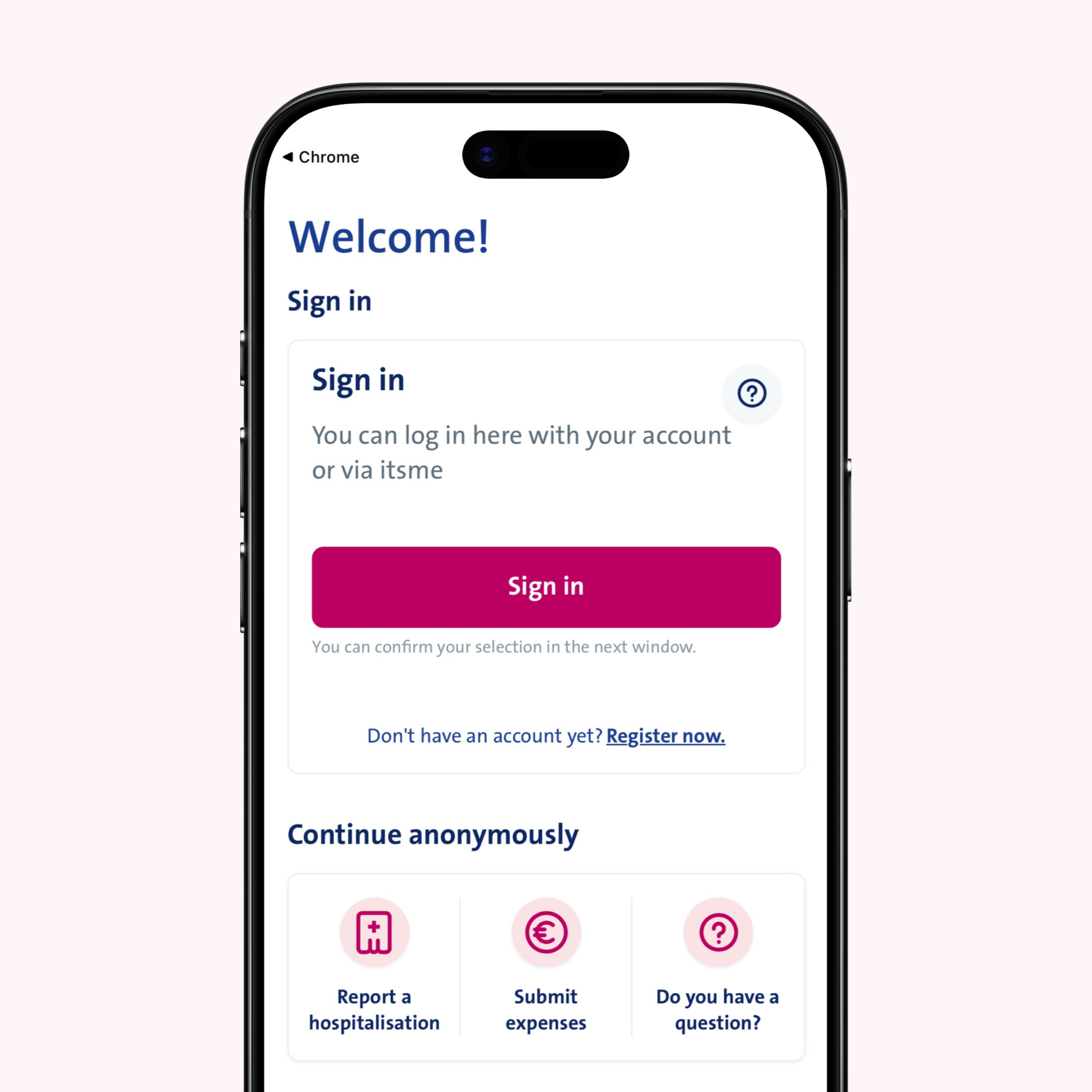
Sign in
Select ‘Sign in’ from the overview screen
STEP 9
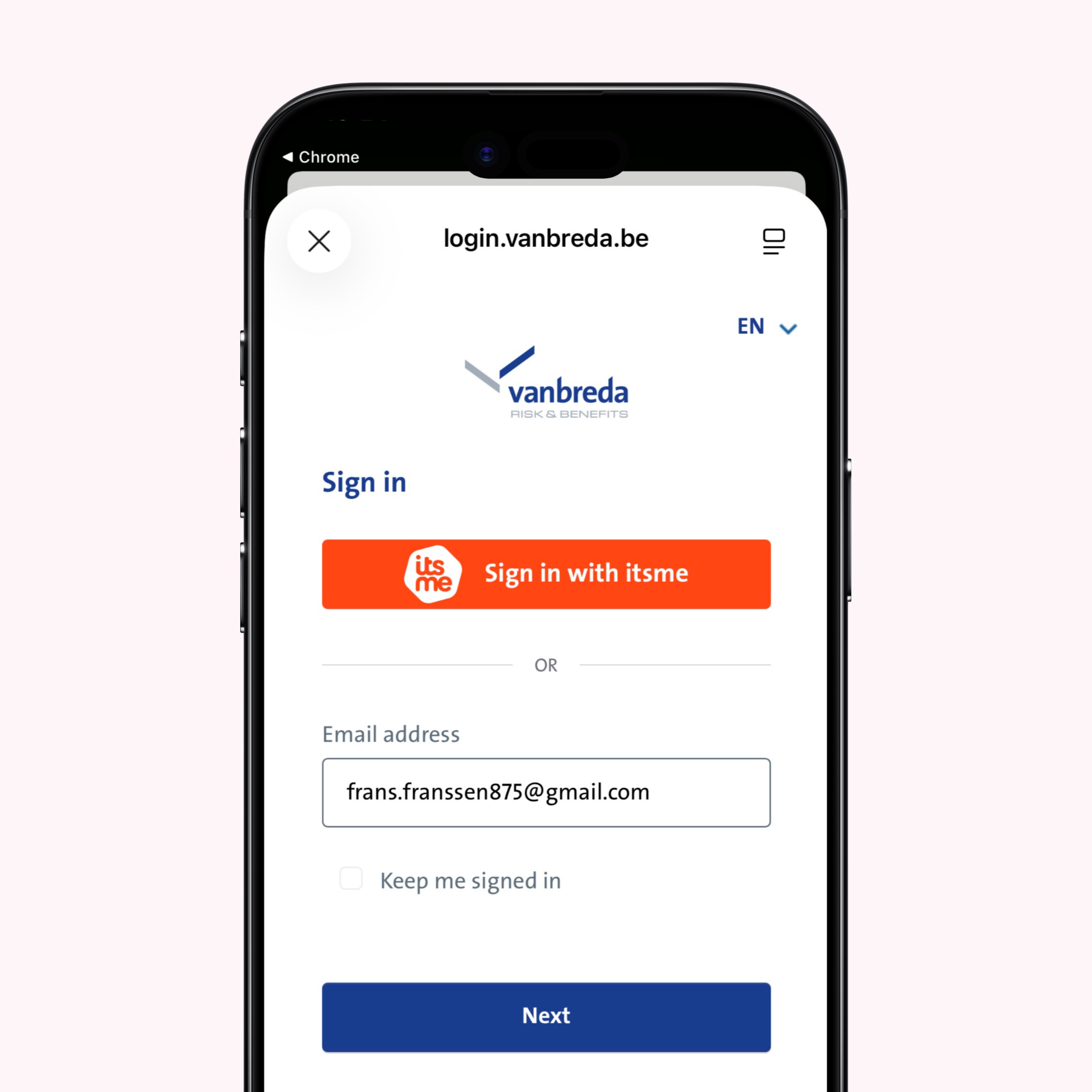
Enter your email address
Enter the email address you used to create your account.
STEP 10
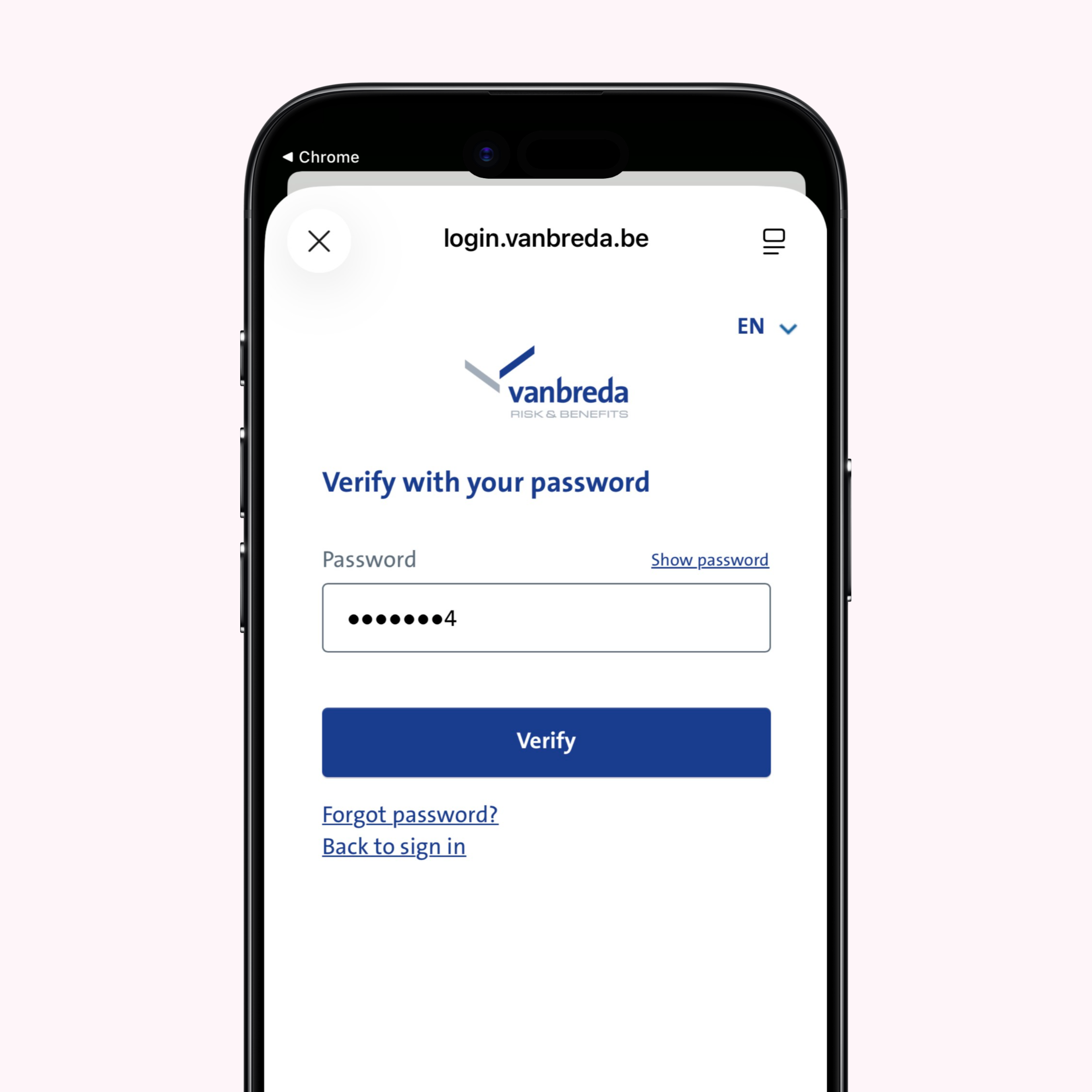
Enter your password
Fill in the password you set in Step 6.
STEP 11
Set up an additional security method
To further protect your account, two-factor authentication is required. is tweestapsverificatie verplicht. You can choose either an Authenticator app or text message (SMS).
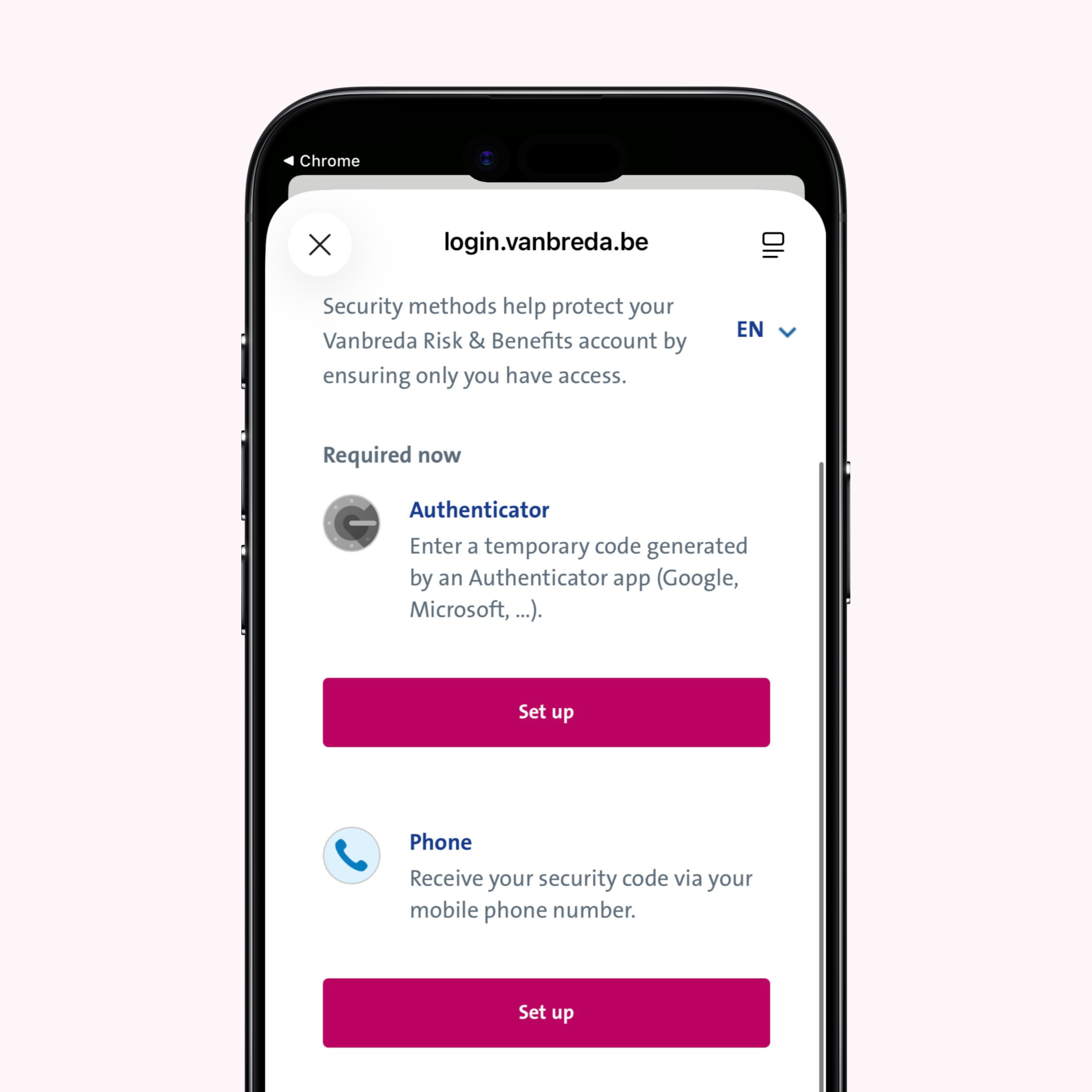
STEP 12
Enter your phone number (text message verification)
Enter your mobile phone number and select ‘Receive a code via SMS’. The country code for Belgium is filled in automatically.
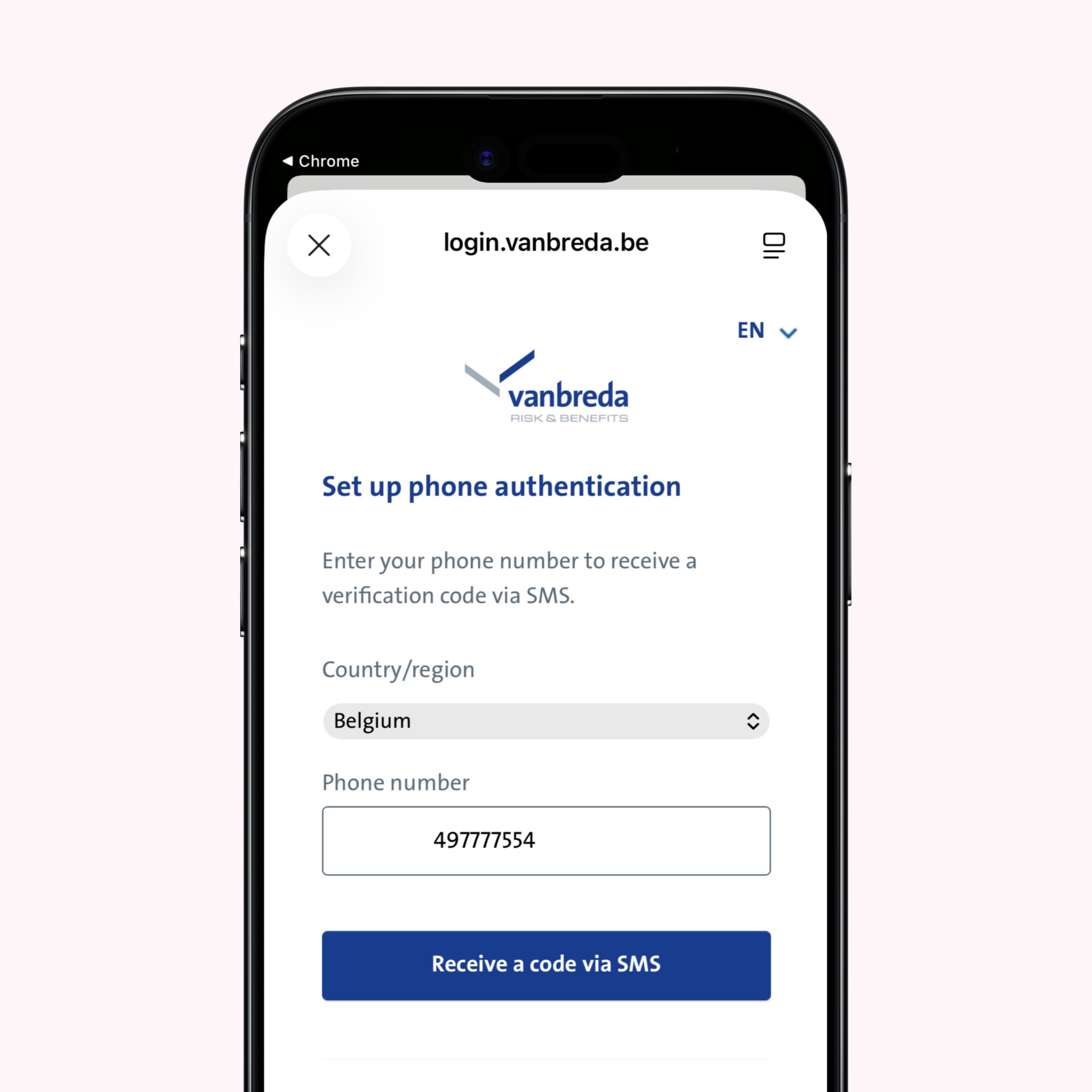
STEP 13
Enter the code you received (text message verification)
You will receive a text message containing a unique code. Enter this code in the app. Didn’t receive a message straight away? Check your spam inbox and make sure you haven’t blocked the sender’s number. Your code will be sent from a four-digit number.
STEP 14
Set your PIN code
You are now successfully logged in. Choose a PIN code. You will need this code to access your account.
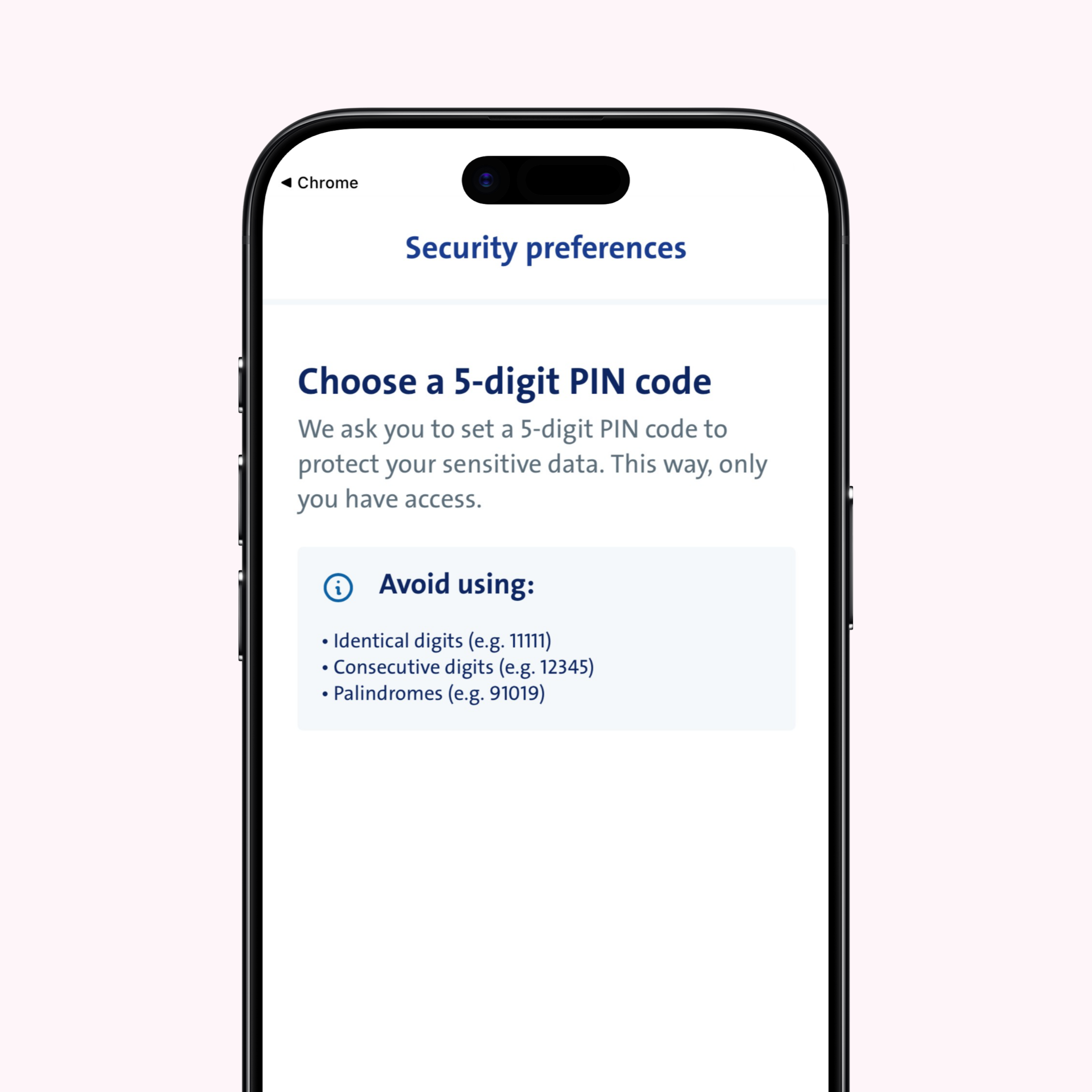
STEP 15
(Optional) Set facial recognition
Prefer an additional login method? You can enable facial recognition at this step.
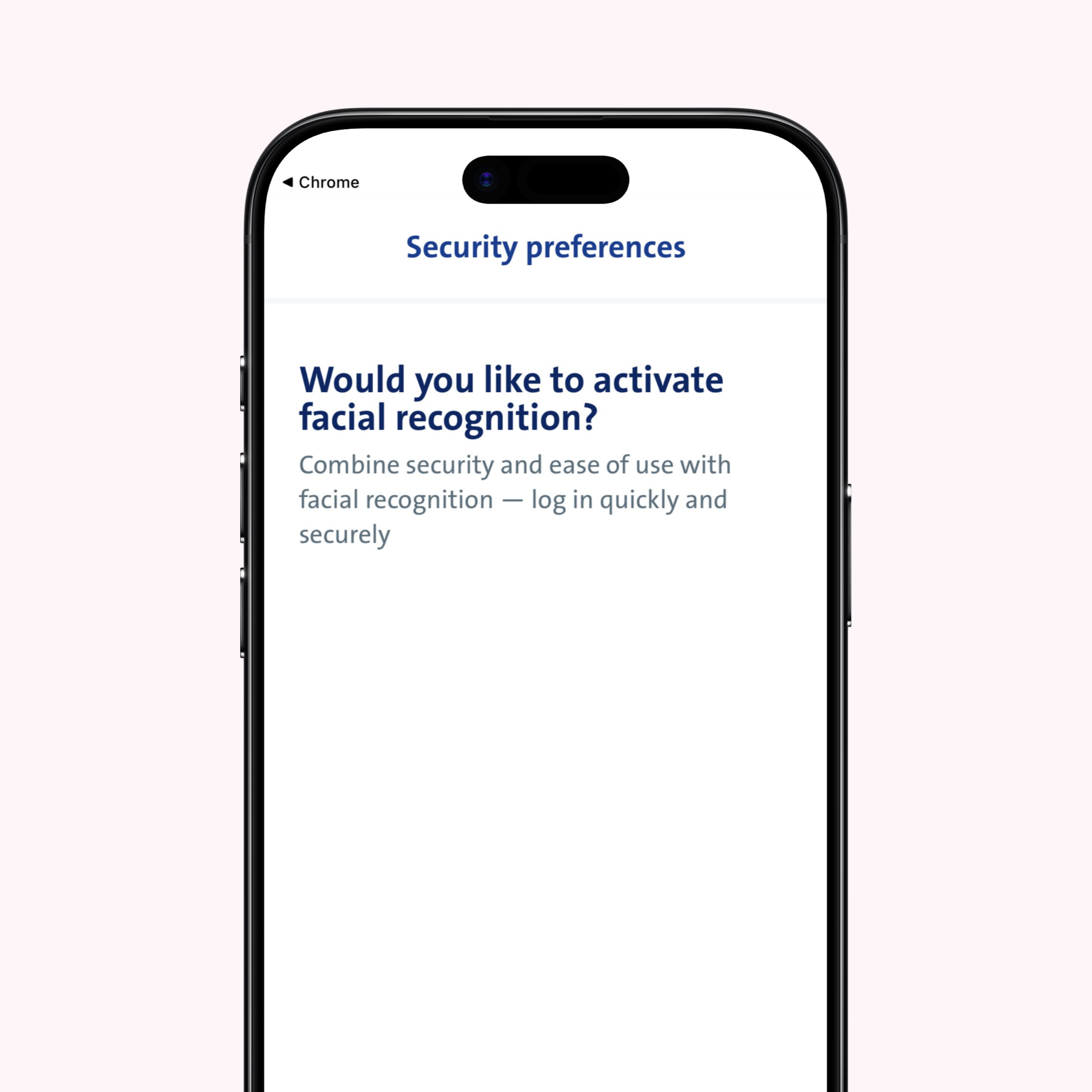
STEP 16
Link your insurance policy
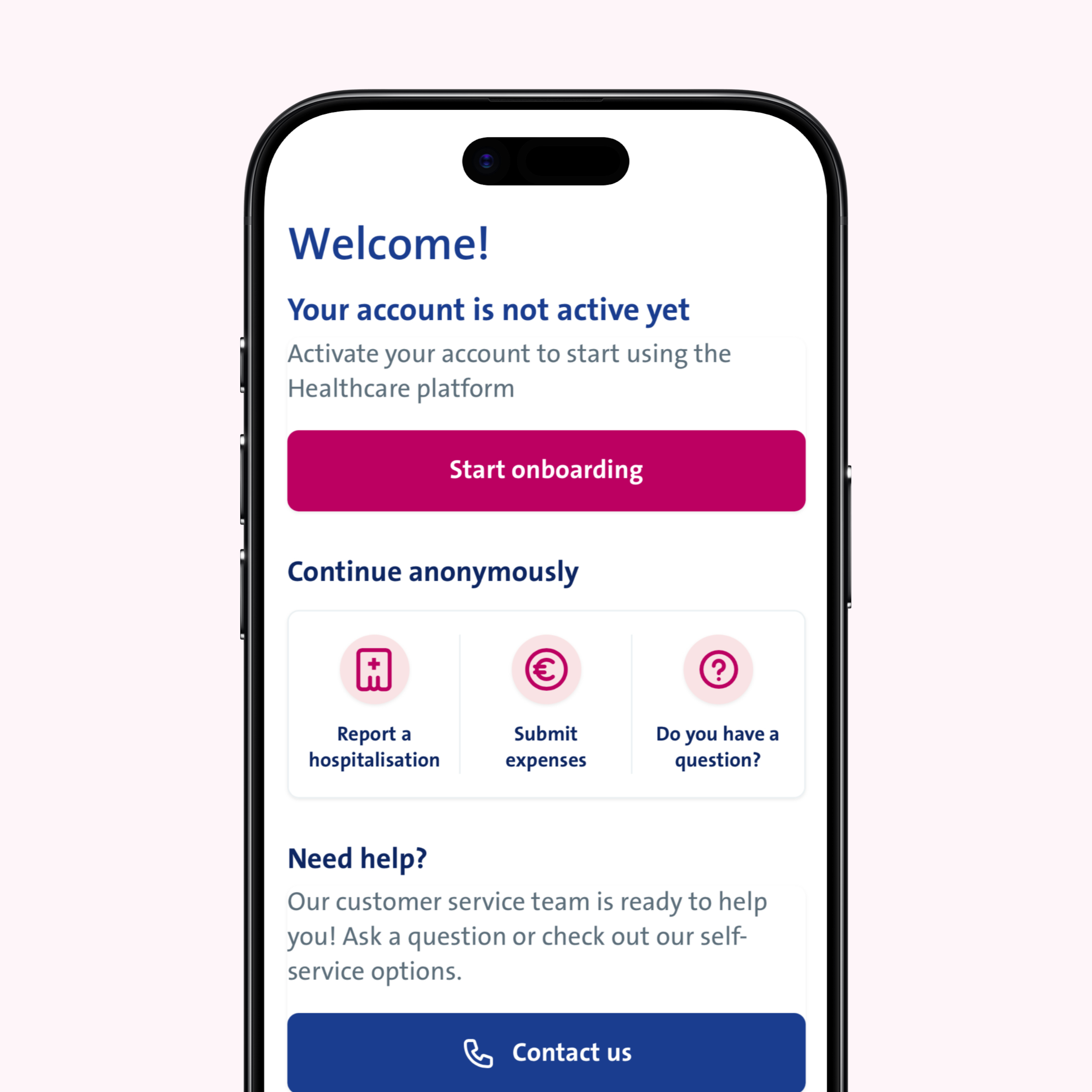
Your profile has been successfully created. Choose ‘Start onboarding’ to link your existing insurance policy.
STEP 17
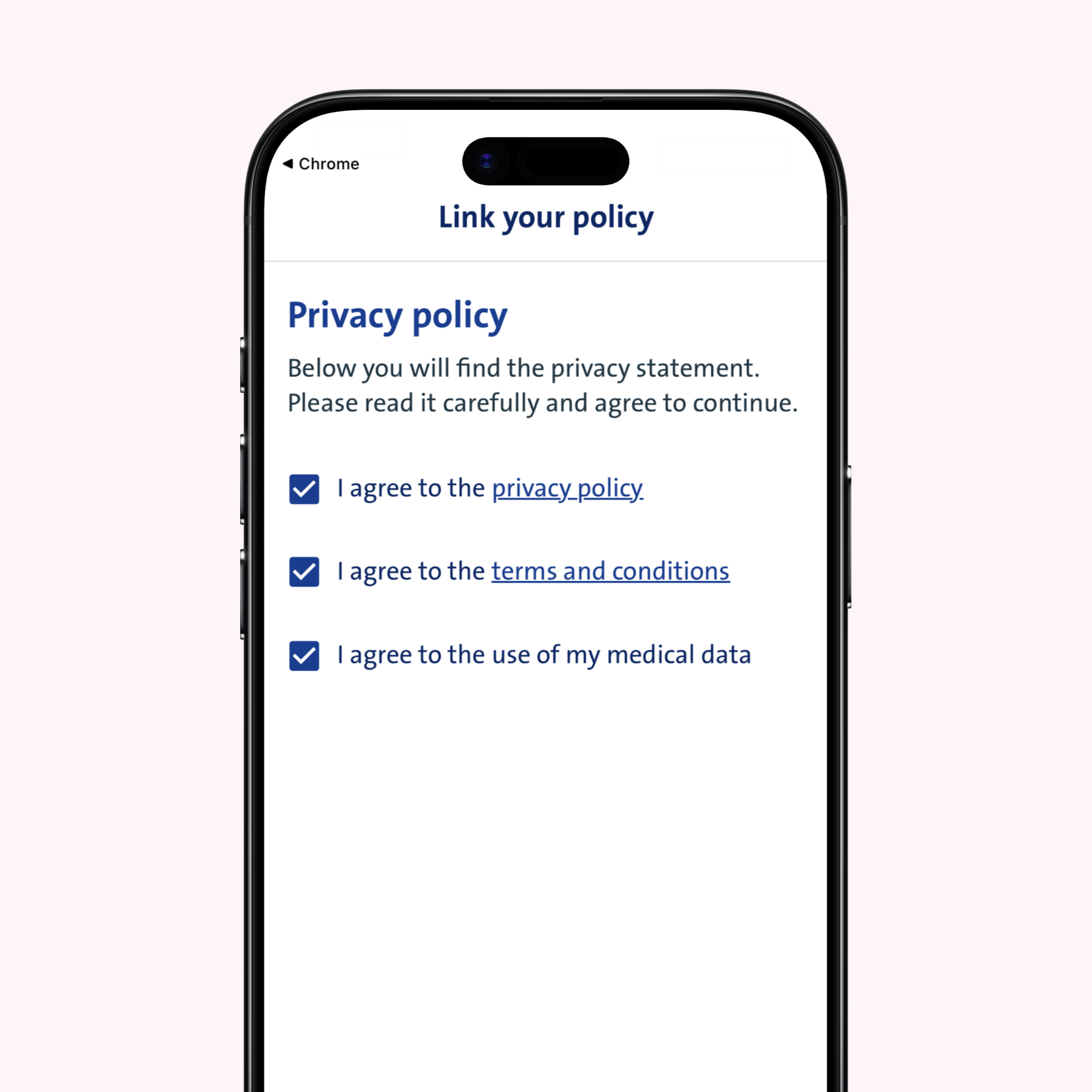
Accept the privacy statement
Consent to the privacy statement, general terms and conditions and the processing of your medical data in order to use the app.
STEP 18
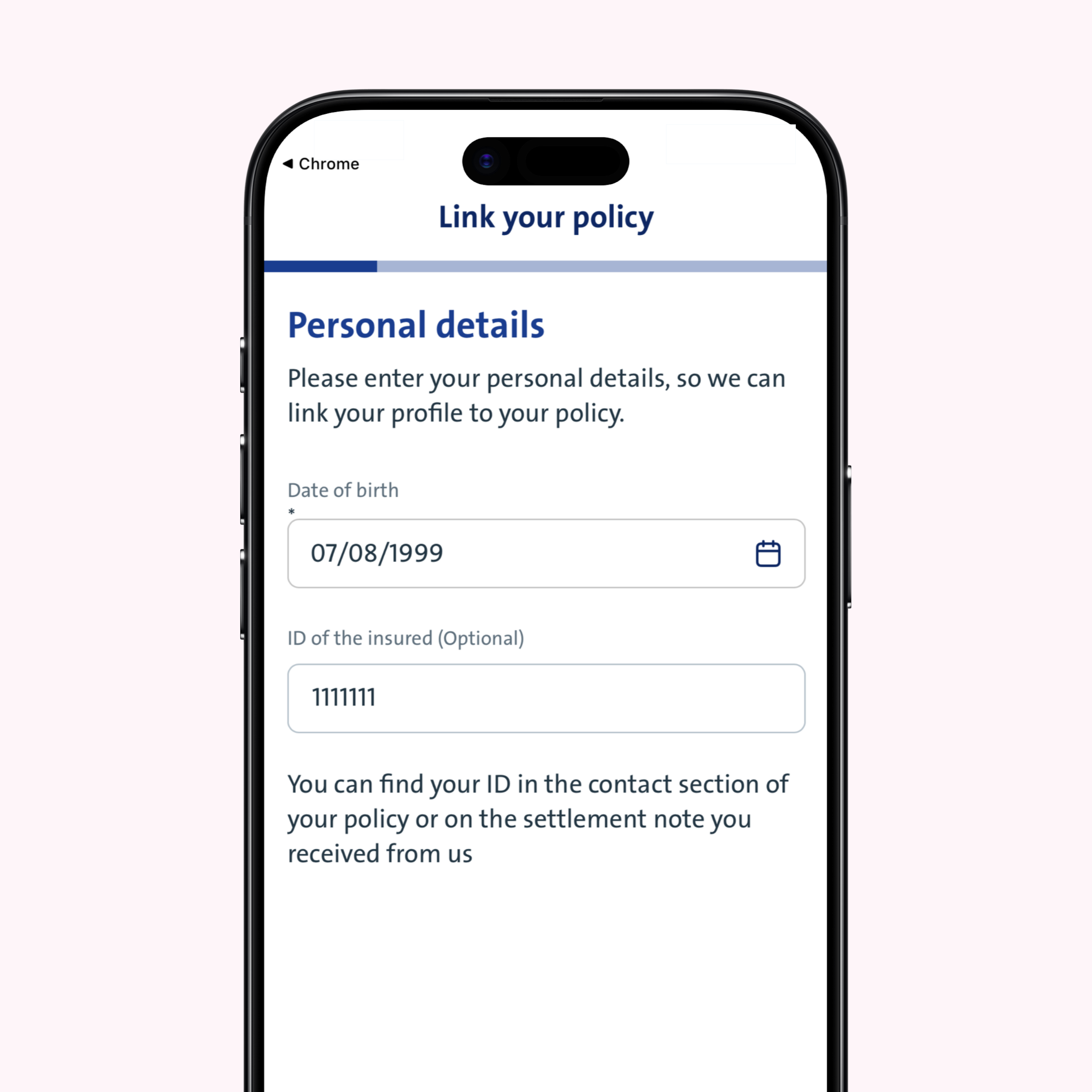
Link your insurance policy
Your profile has been successfully created! Now it’s time to link your insurance policy. Click or tap ‘start onboarding’ and enter your date of birth and MemberID. You’ll find your MemberID in the contact section of your insurance plan or in your settlement note. You’ll then receive a registration code by email or post to link your insurance policy to your profile.
STEP 19
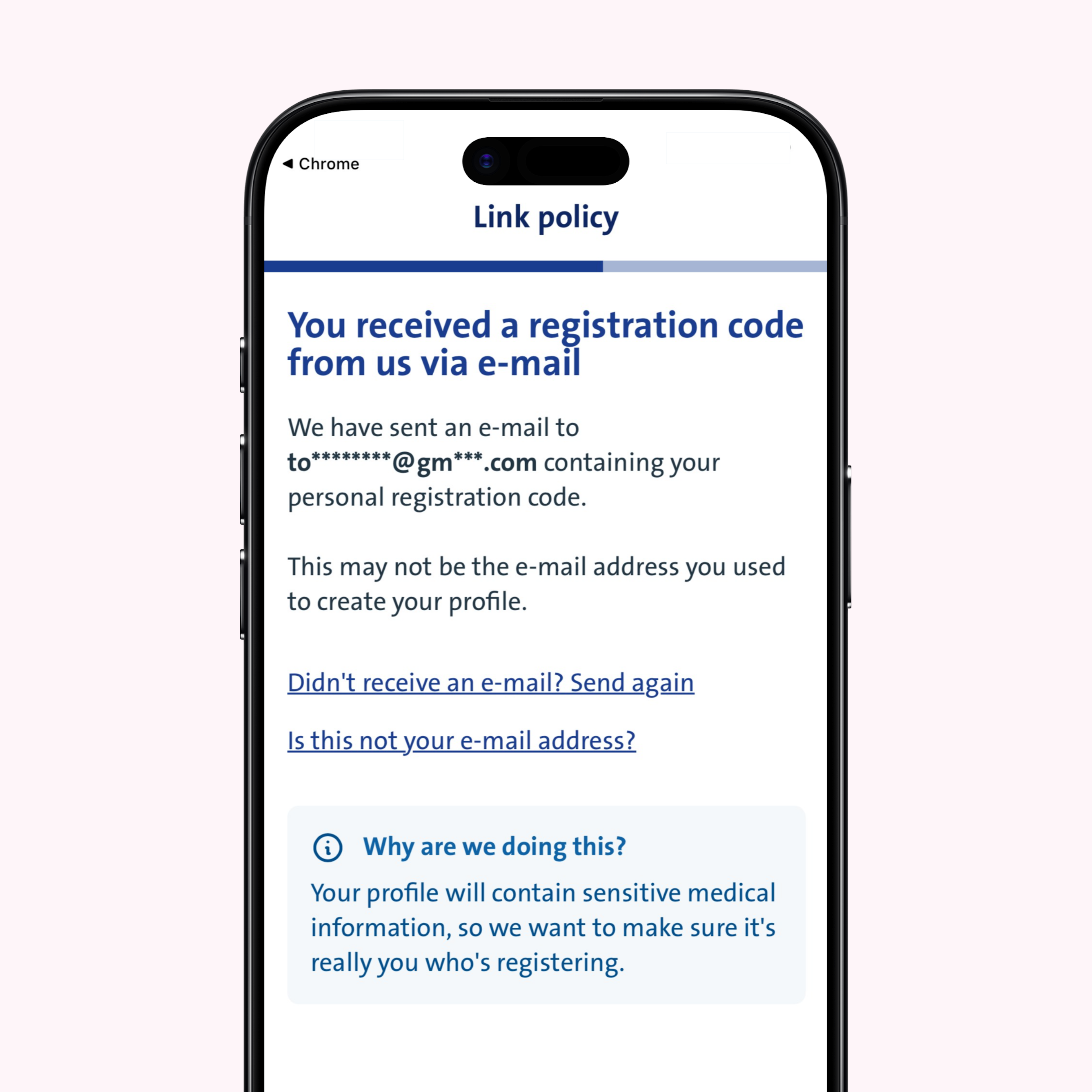
You will receive a registration code by email or mail
If we already have your email address in our database, your registration code will be sent to you by email. The app will display the email address where you’ll receive your code. If we do not have your email address on file, we’ll send your personal registration code by post.
STEP 20
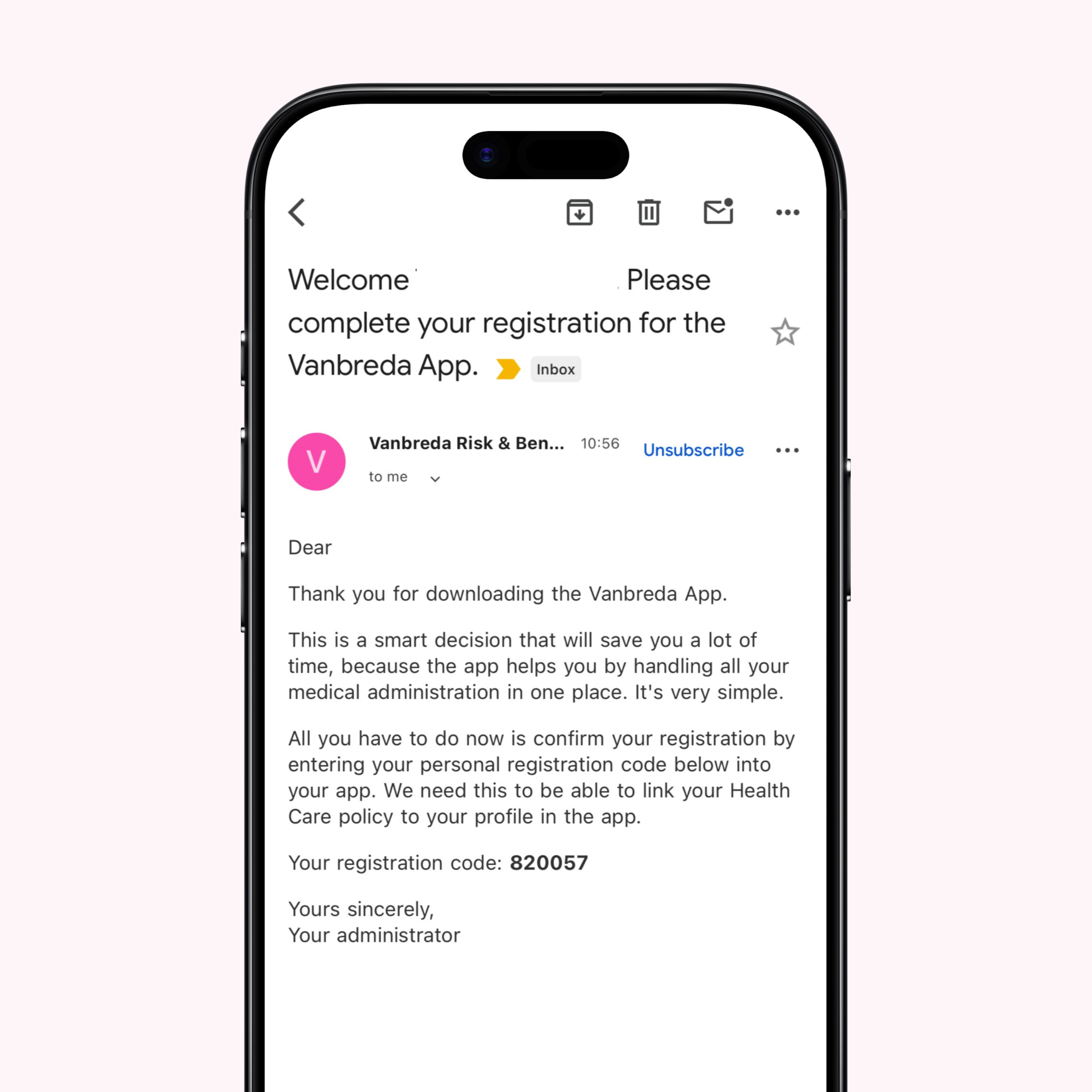
Open the email or letter containing your registration code
Your registration code is included in the email or letter you received from us.
STEP 21
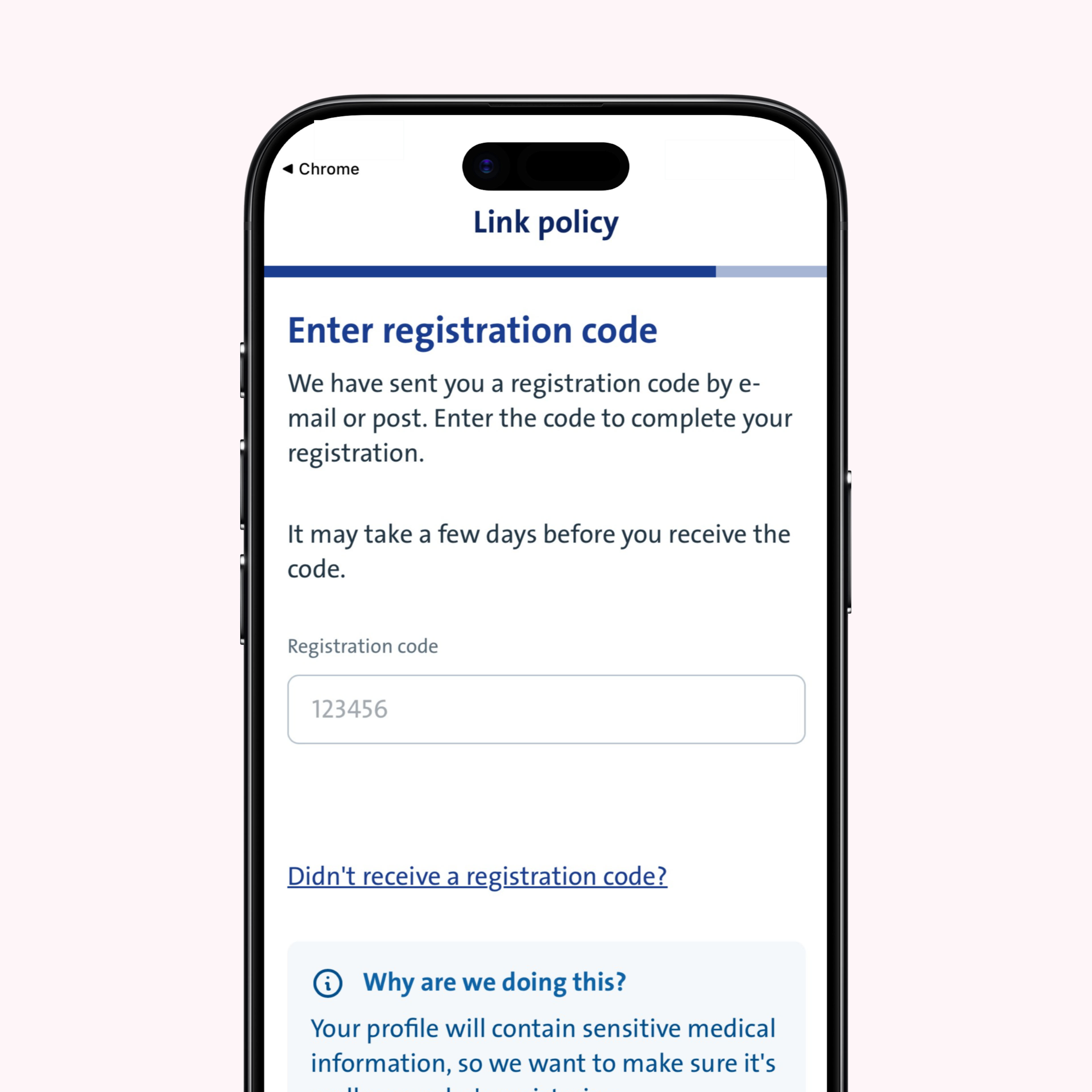
Enter the registration code on the app
Enter your personal registration code in the app to link your existing insurance policy to your account.
STEP 22
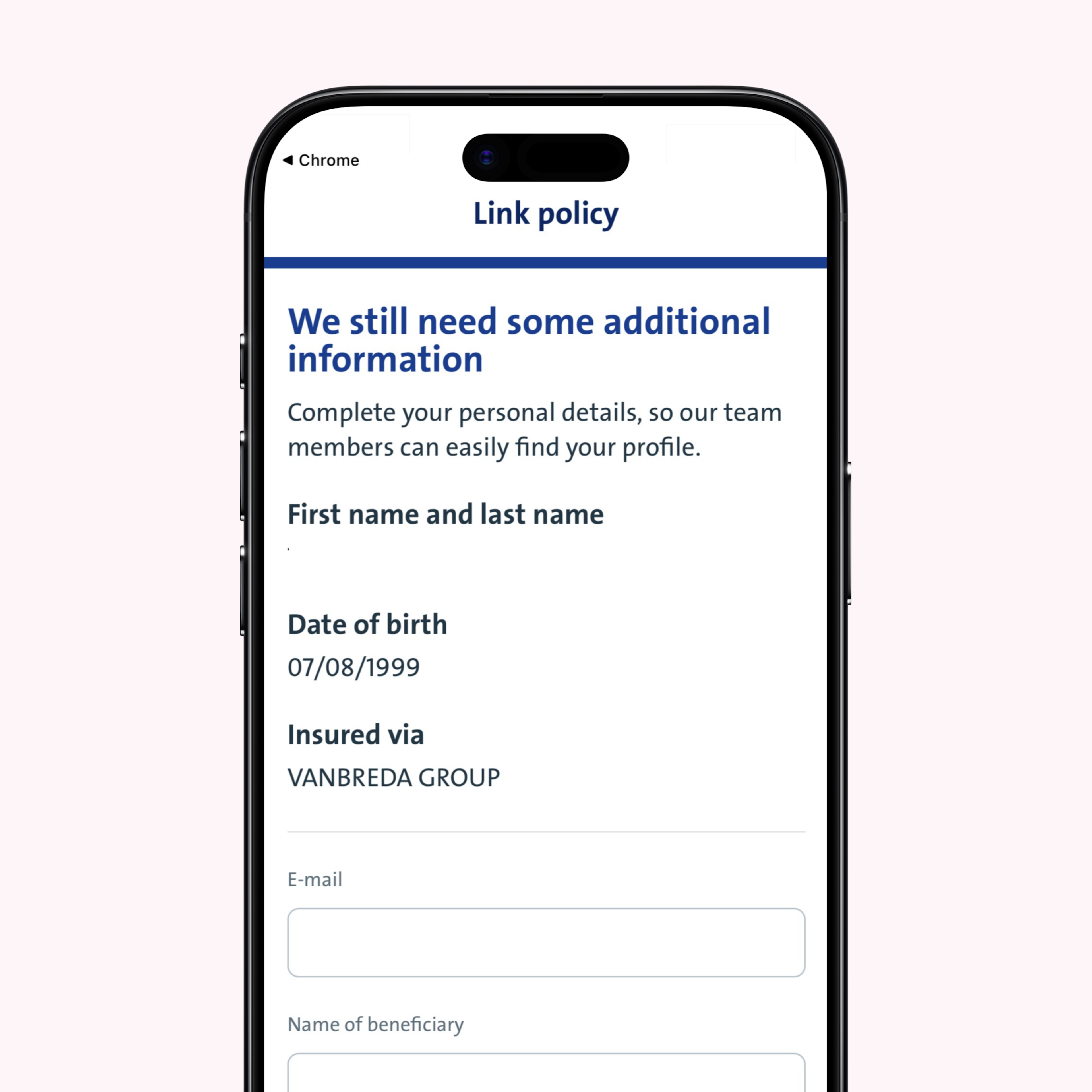
Confirm your details
Check and confirm your details in the overview. Your reimbursements will be paid to the bank account shown in the overview. The email address you provided will be used for all communication.
STEP 23
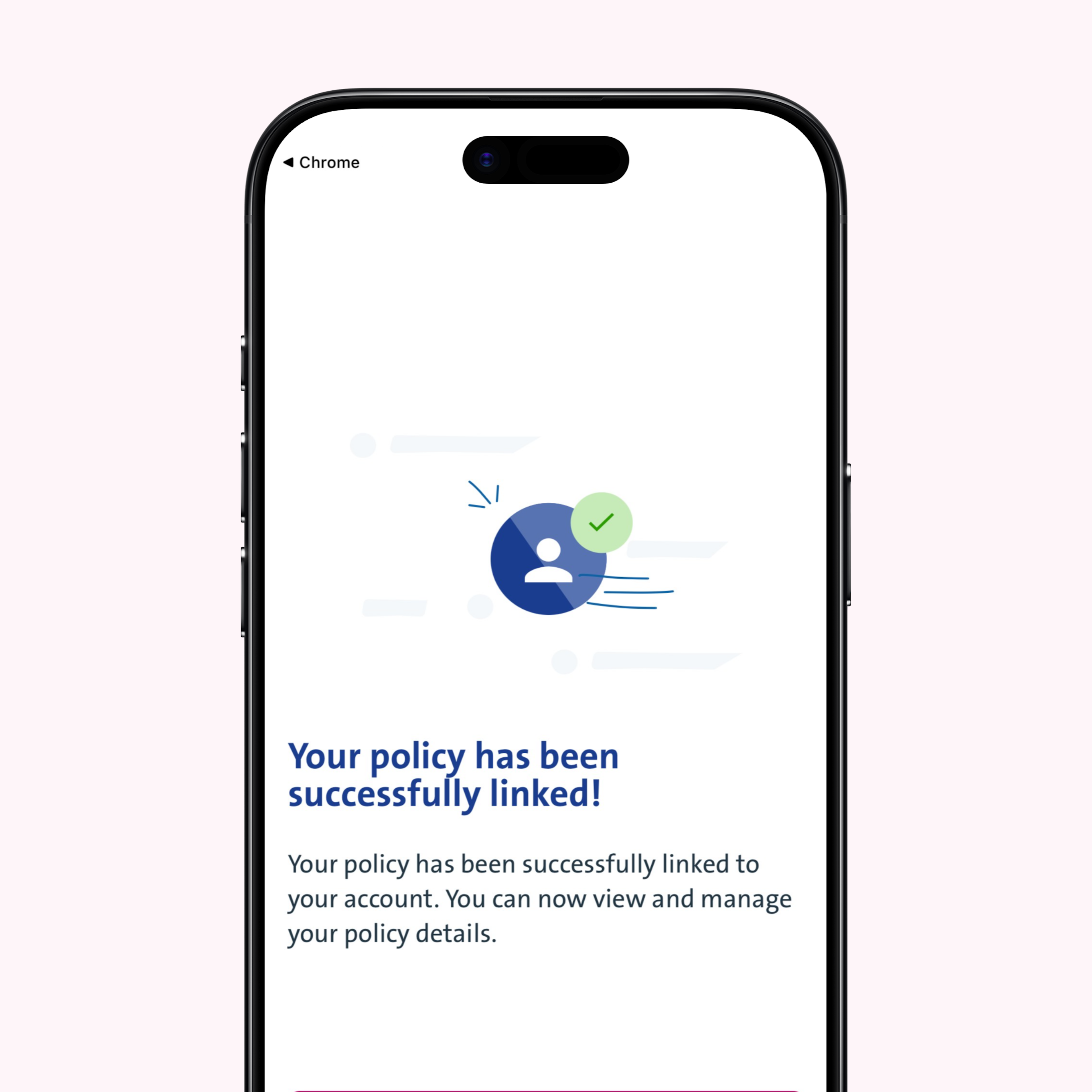
Your account has been successfully linked to your insurance policy
Your account has been successfully linked to your insurance policy
STEP 24
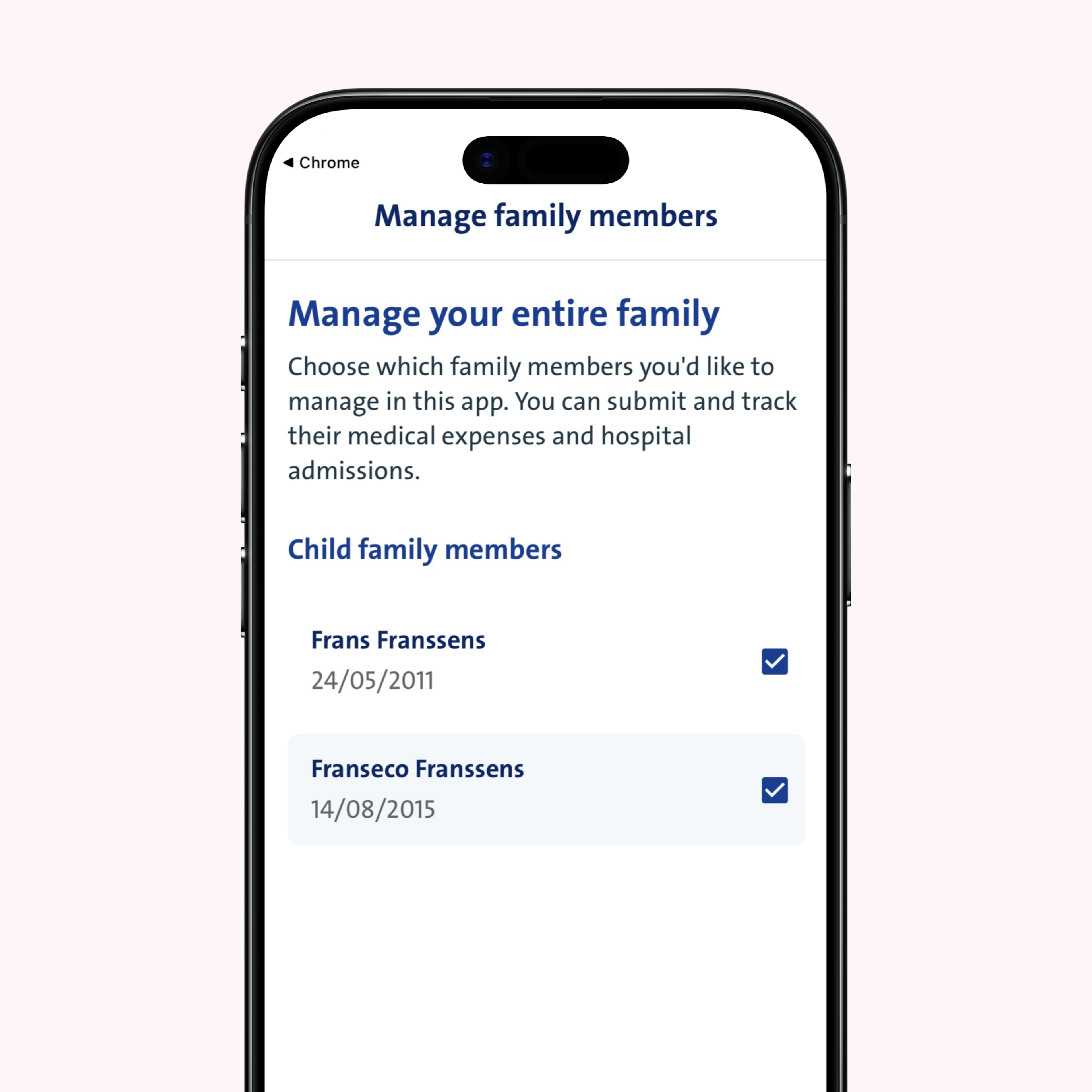
Add any family members to your profile
Once registered, you can add family members to your account and manage them. Minor children can be added to your profile directly. To add an adult family member, request their personal registration code via the app. This lets them activate their individual account and link it to your profile.
Questions?
Need help creating your account with itsme®? You’ll find more info at app.vanbreda.be/support. There, you can read answers to the most common questions or contact our experts directly. We’re always here to help you!