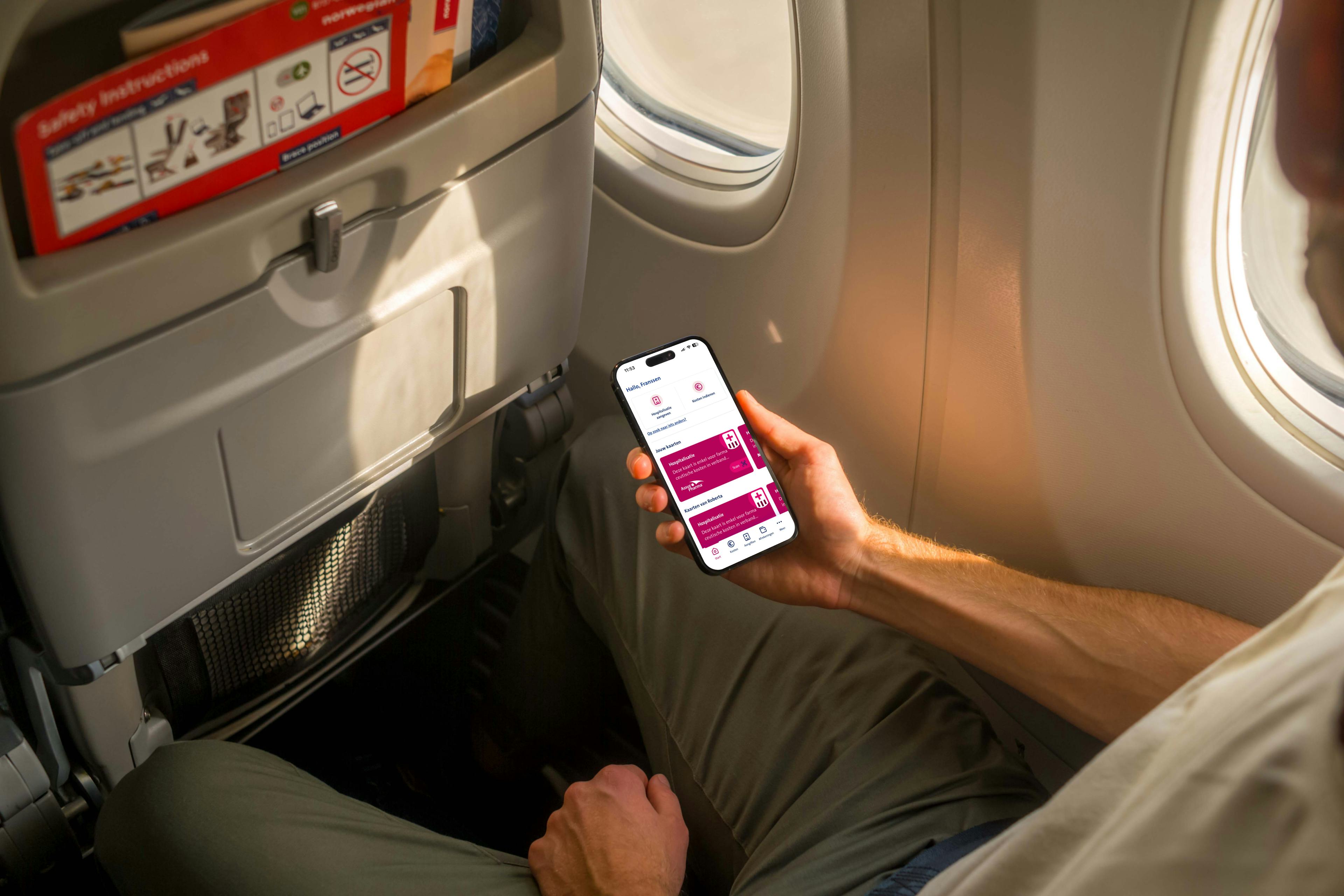
Vanbreda App
Step-by-step guide: how to register on the Vanbreda App with itsme®
With itsme®, you can log in securely to your personal Vanbreda environment – both in the app and via your web browser. This gives you secure access to your personal file at all times, and lets you easily submit claims for hospital admissions, outpatient expenses and more. On this page, you’ll discover how easy it is to create your account using itsme®.
Tip: Want your app registration to run even more smoothly? Provide your email address (and those of your family members) at least two days before signing up via app.vanbreda.be/support > Digital > I’m going digital. This way, you’ll receive future updates immediately via email instead of by post.
Prefer to register using your email address instead? Read the step-by-step guide on how to create an account by email.
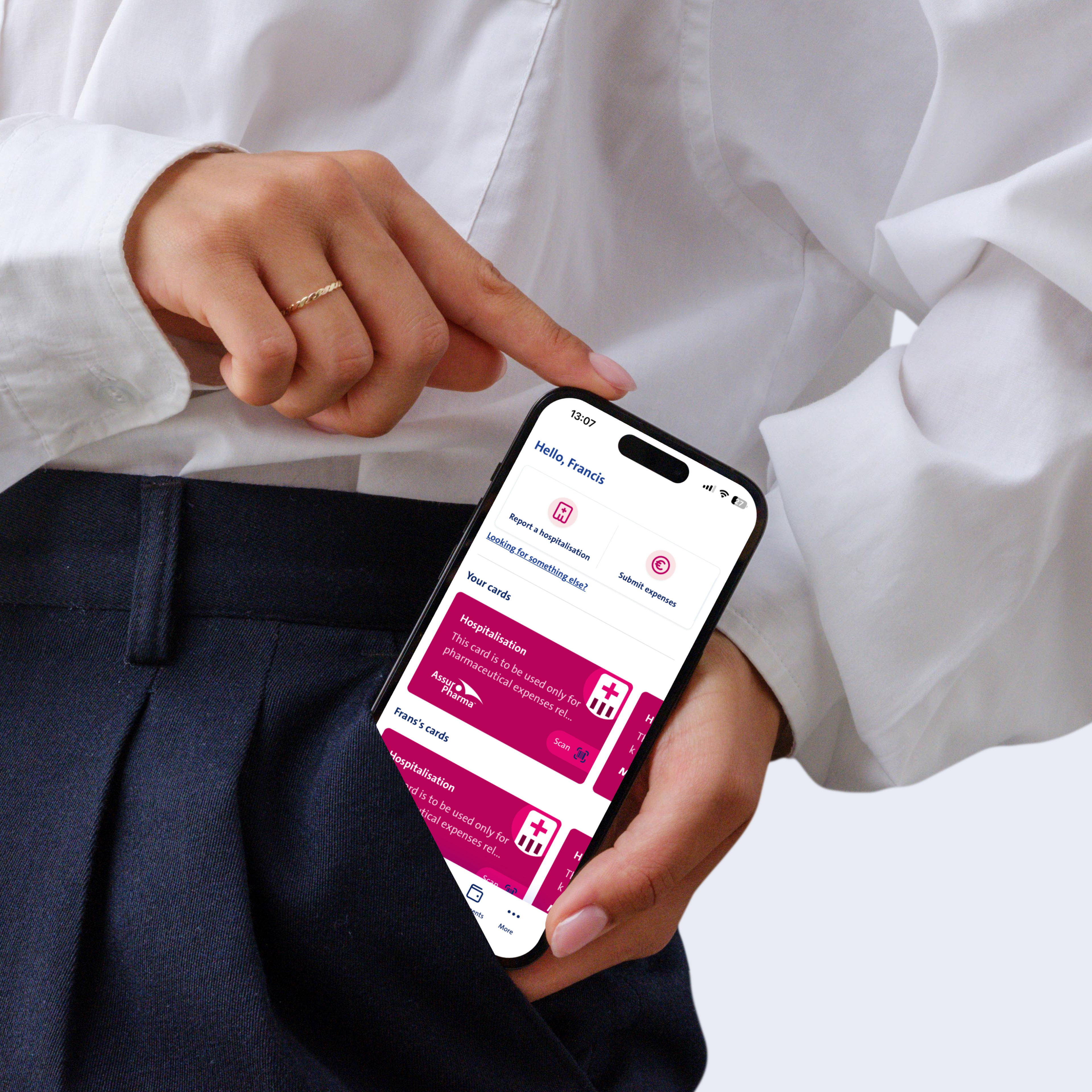
STEP 1
Download the Vanbreda App
Download and install the Vanbreda App on your smartphone. Or visit app.vanbreda.be and create an account via your computer.
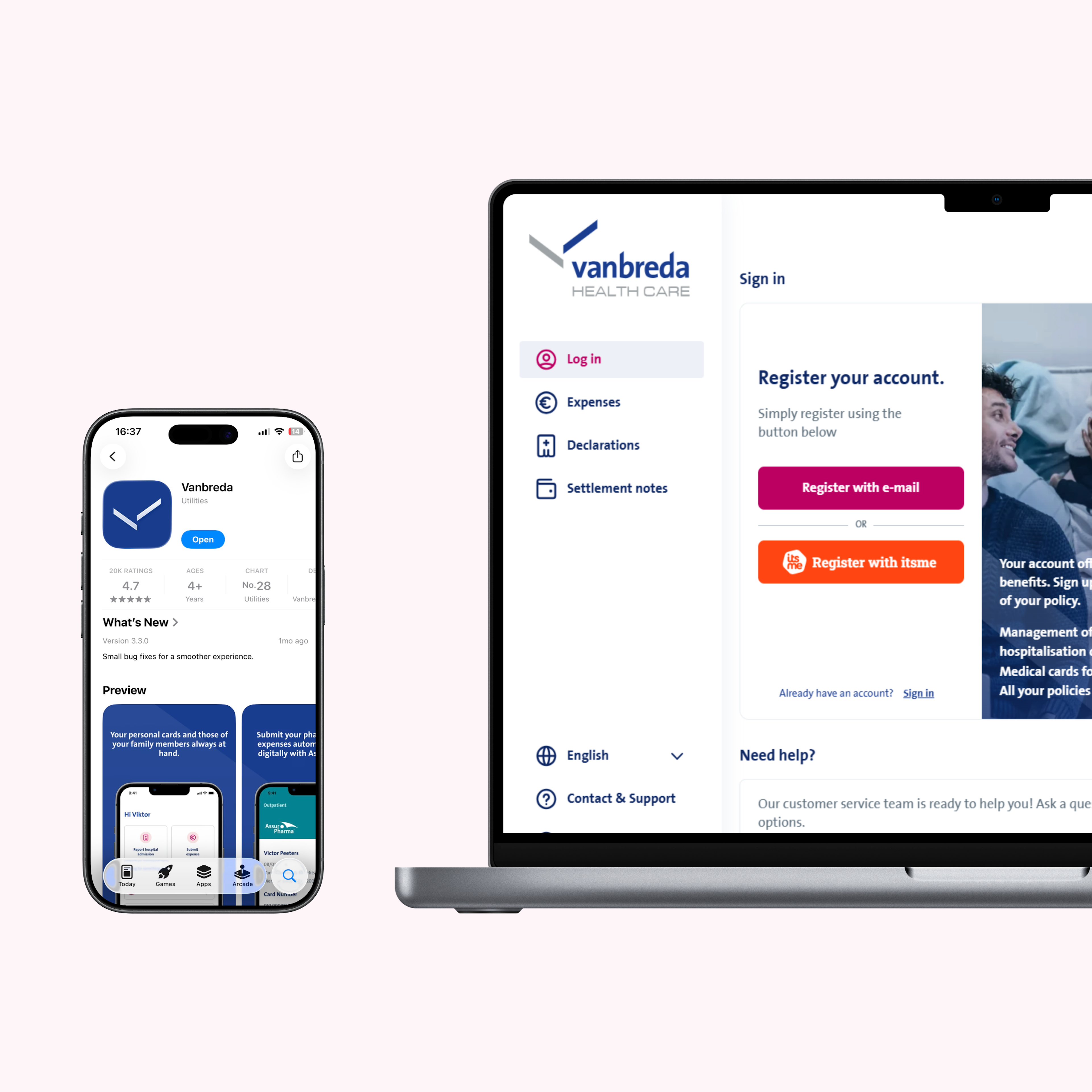
STEP 2
Register via itsme®
Open the app and select ‘register with itsme®’. Then give your permission to share your details.
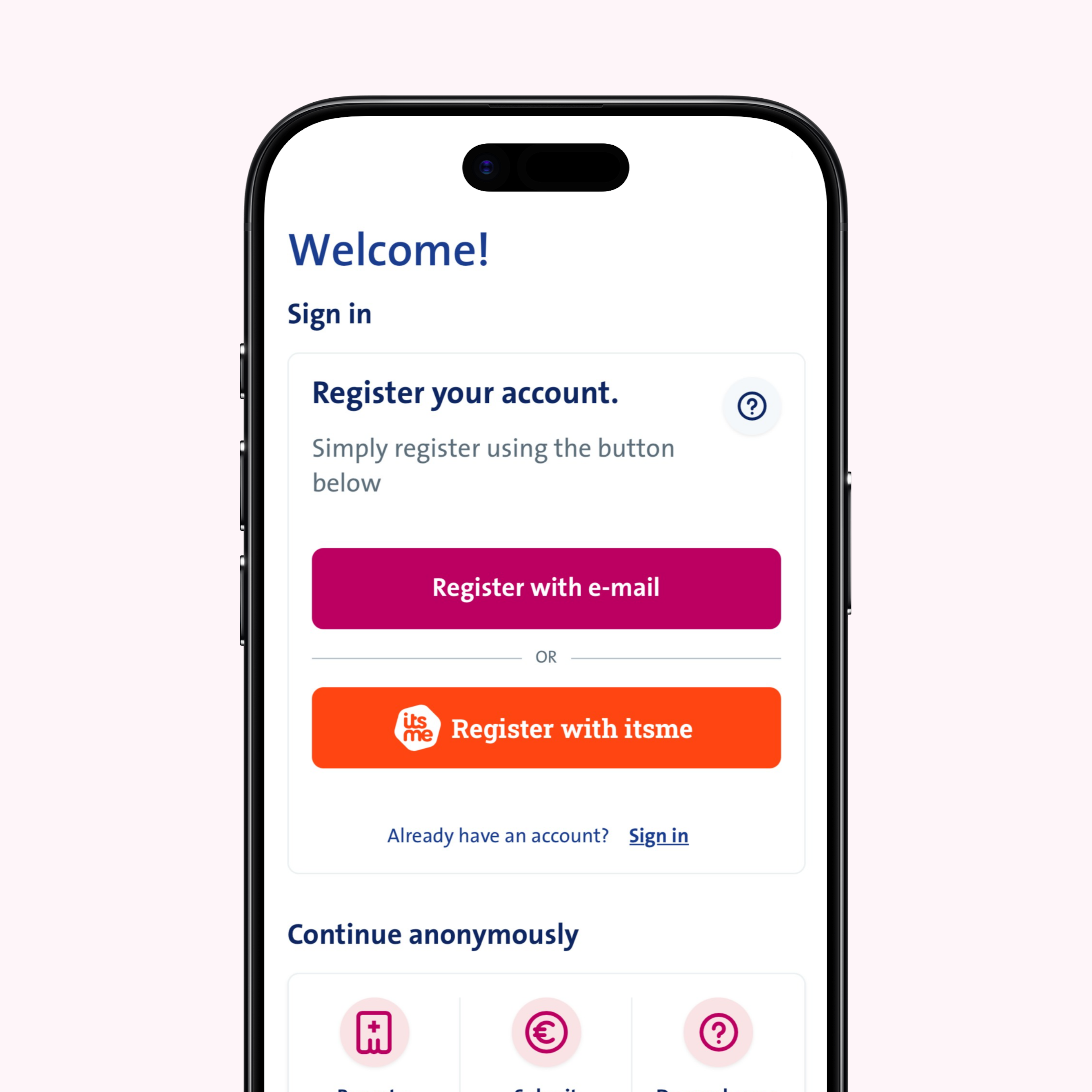
STEP 3
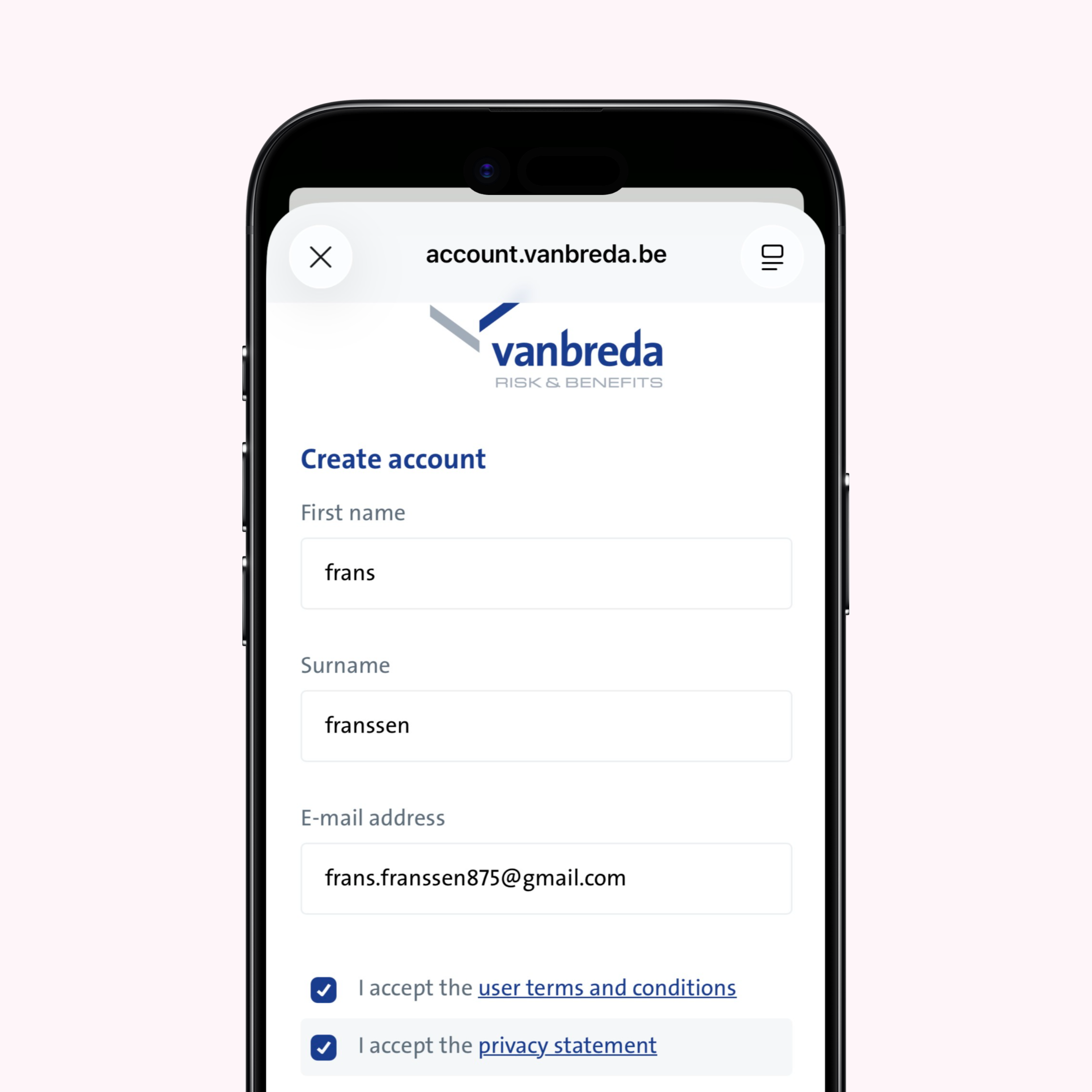
Enter your details
Enter your first name, surname and email address in the form. These details are required to create your profile.
STEP 4
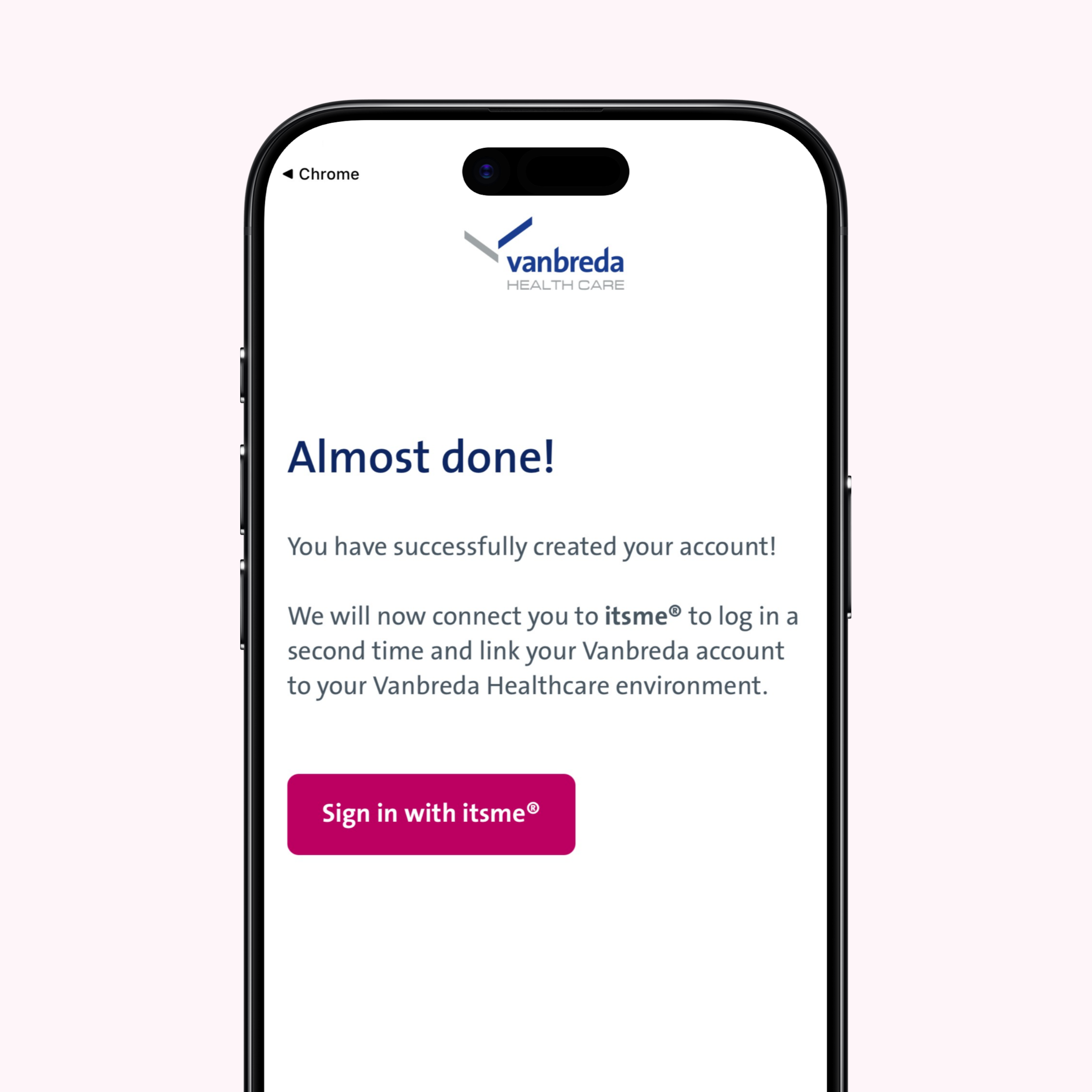
Your account has been created
Choose ‘sign in with itsme®’ to link your details.
STEP 5
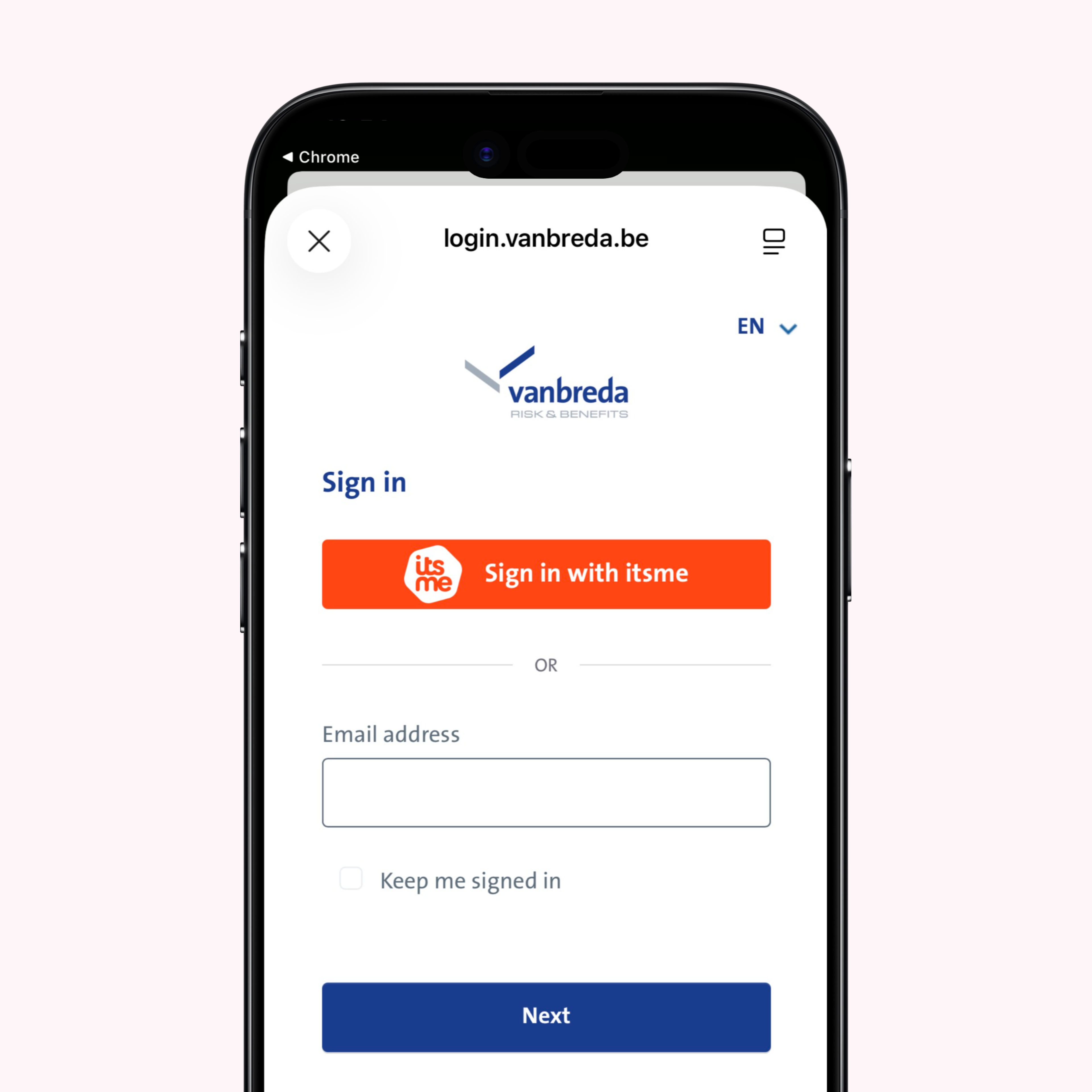
Choose ‘Sign in met itsme®’
On the login screen, select itsme® as your sign in method.
STEP 6
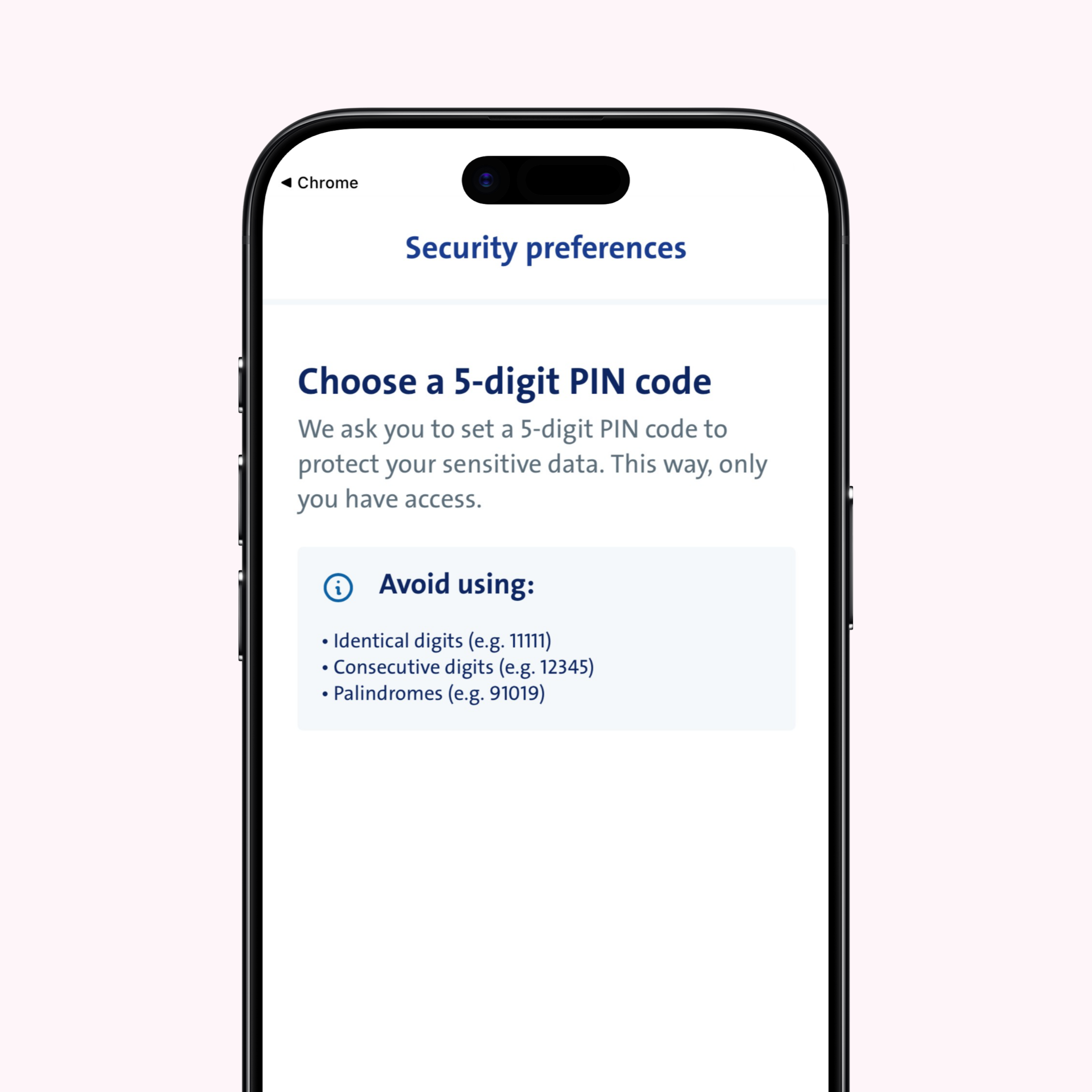
Set your PIN
You are now successfully logged in. Choose a PIN code. You will need this code to access your account.
STEP 7
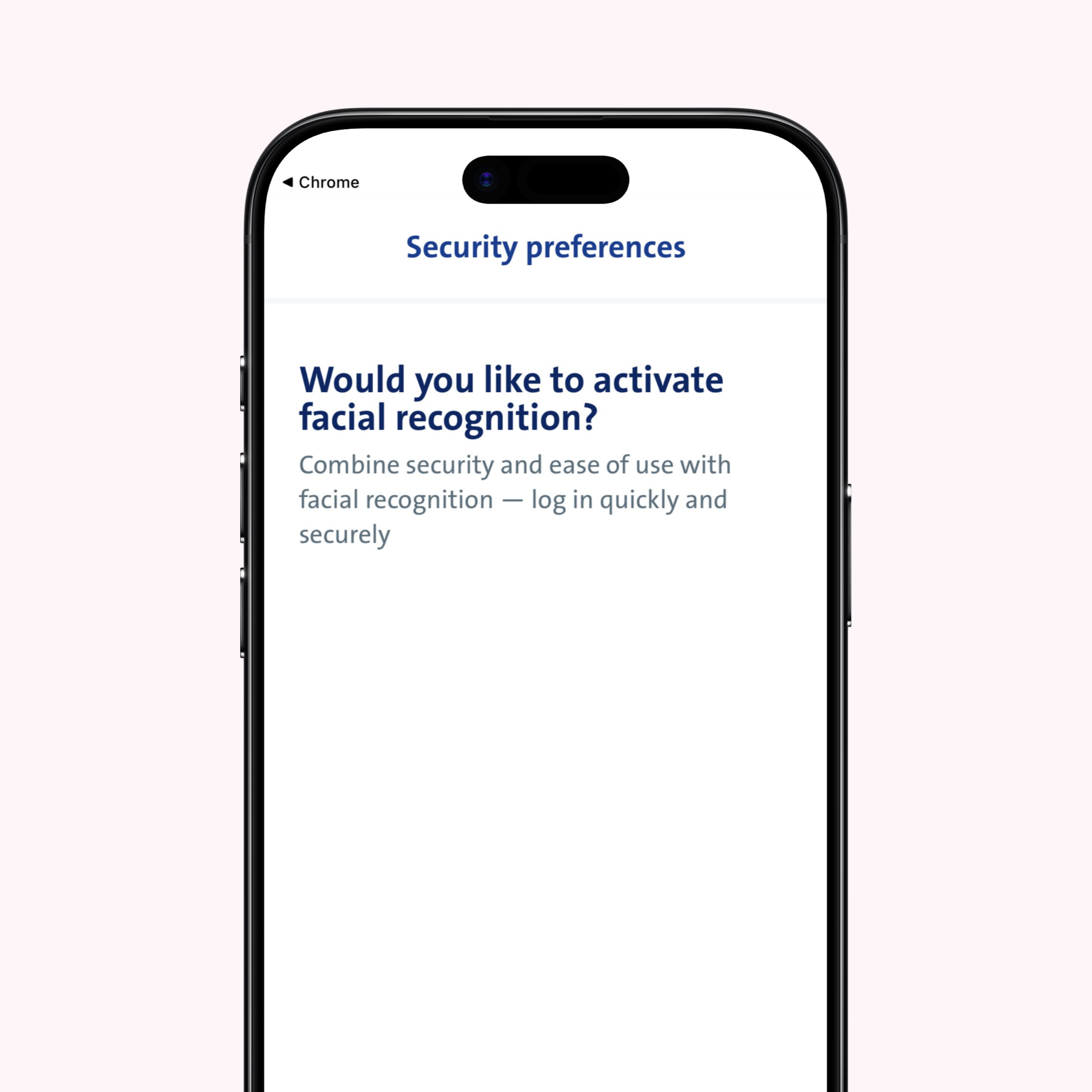
(optional) Set up facial recognition
Prefer an additional login method? You can enable facial recognition at this step.
STEP 8
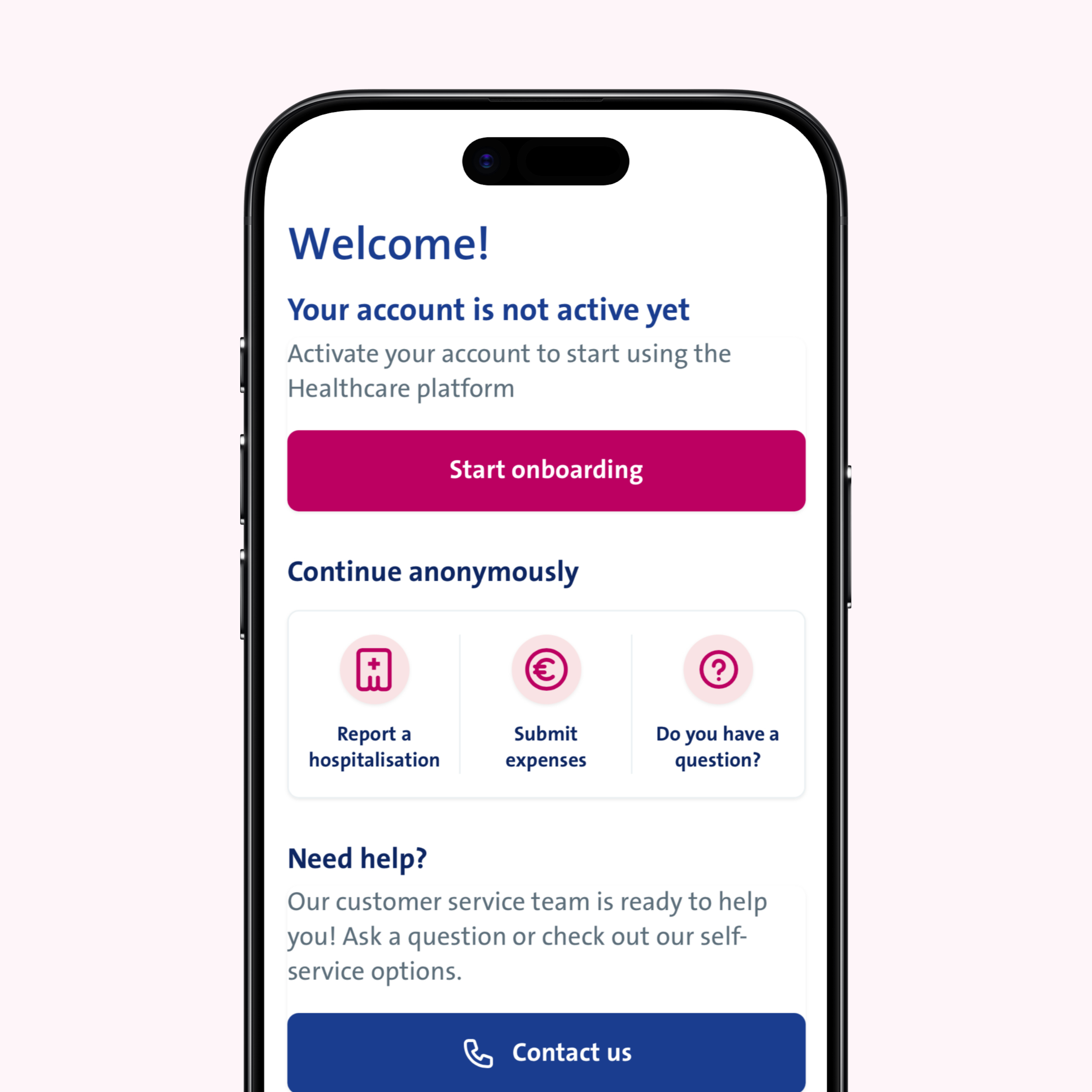
Link your insurance policy
Your profile has been successfully created. Choose ‘Start onboarding’ to link your existing insurance policy.
STEP 9
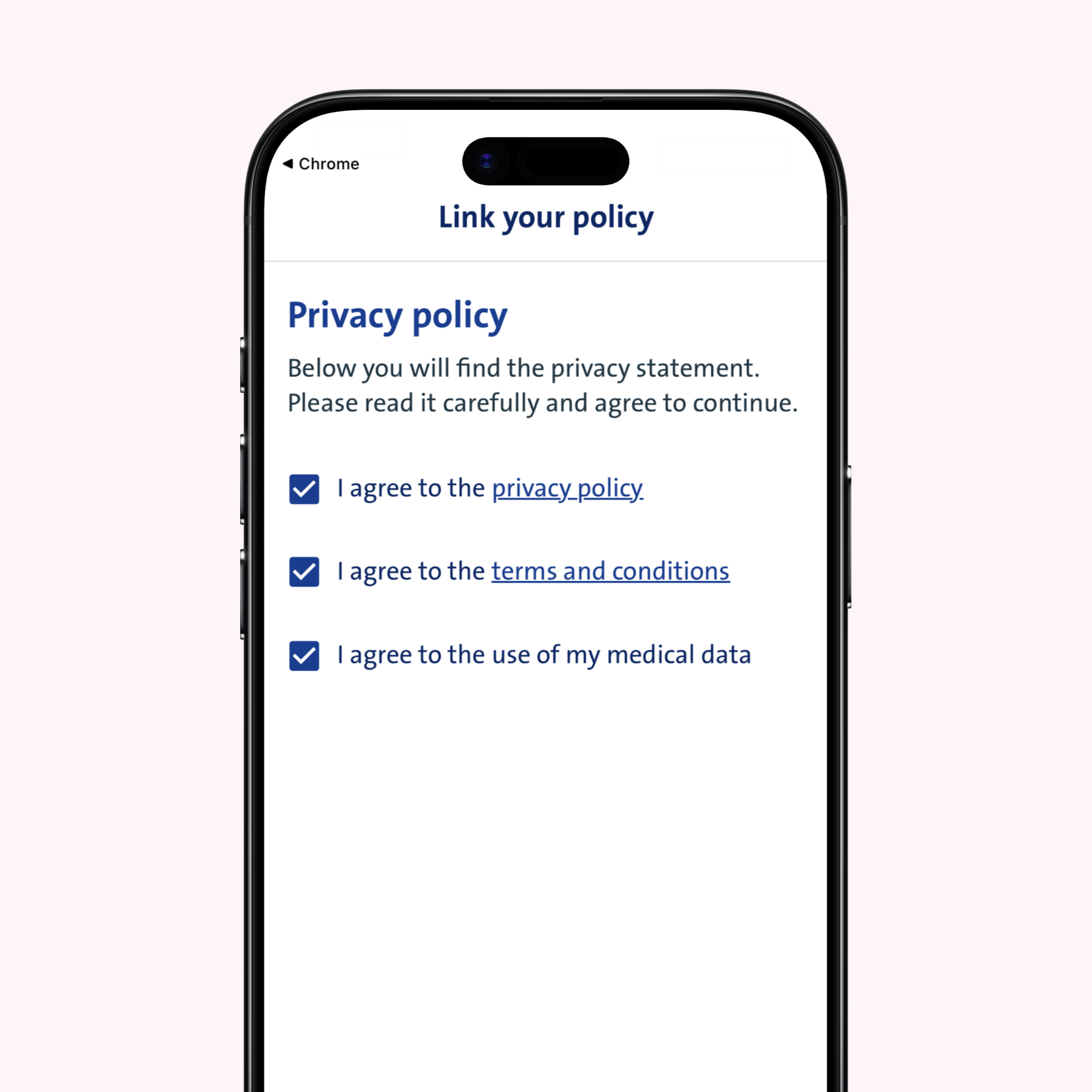
Accept the privacy statement
Consent to the privacy statement, general terms and conditions and the processing of your medical data in order to use the app.
STEP 10
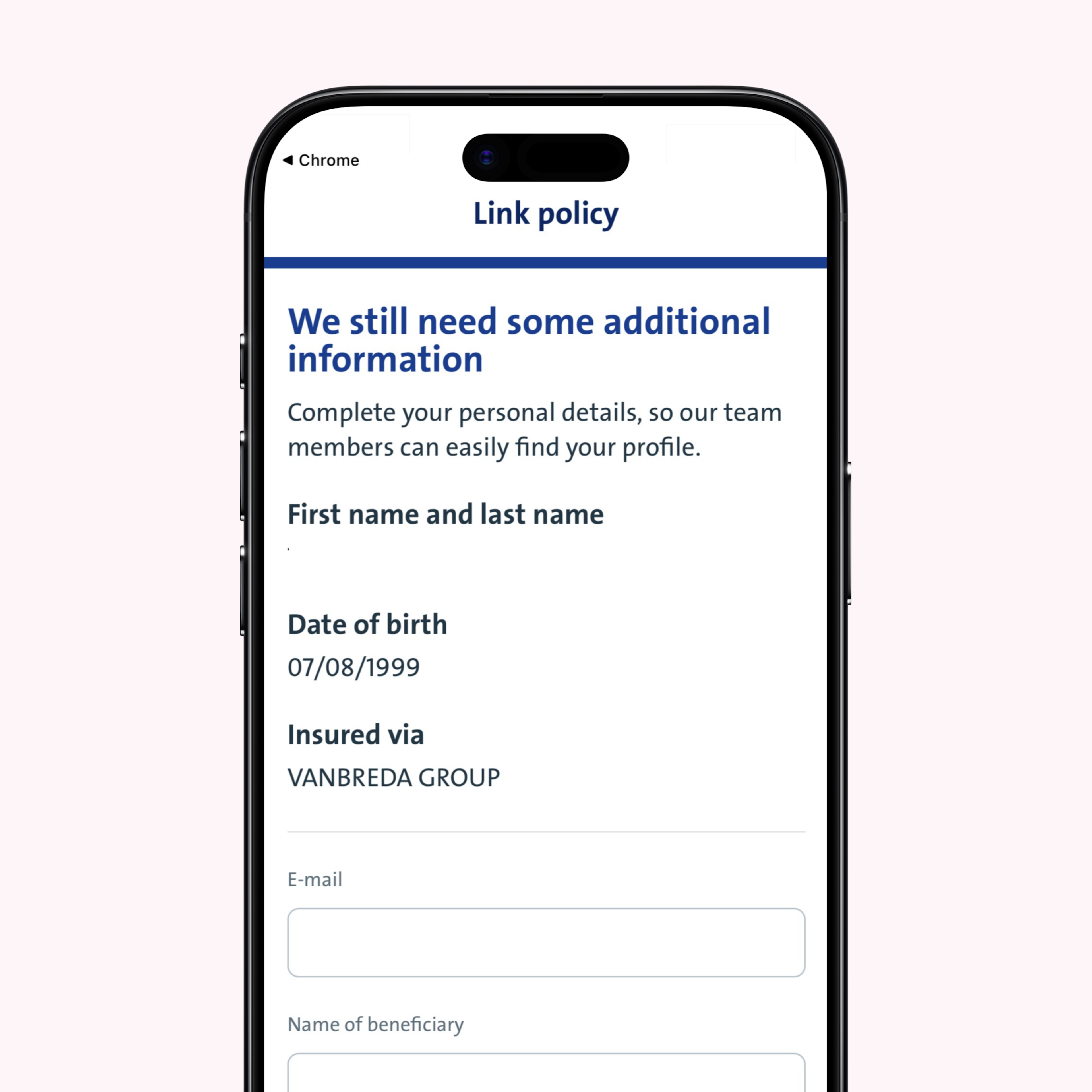
Confirm your details
Your insurance policy has been linked. Check and confirm your details. Your reimbursements will be paid to the bank account shown in the overview. If your details haven’t been linked automatically and do not appear in the overview screen, proceed to step 13.
STEP 11
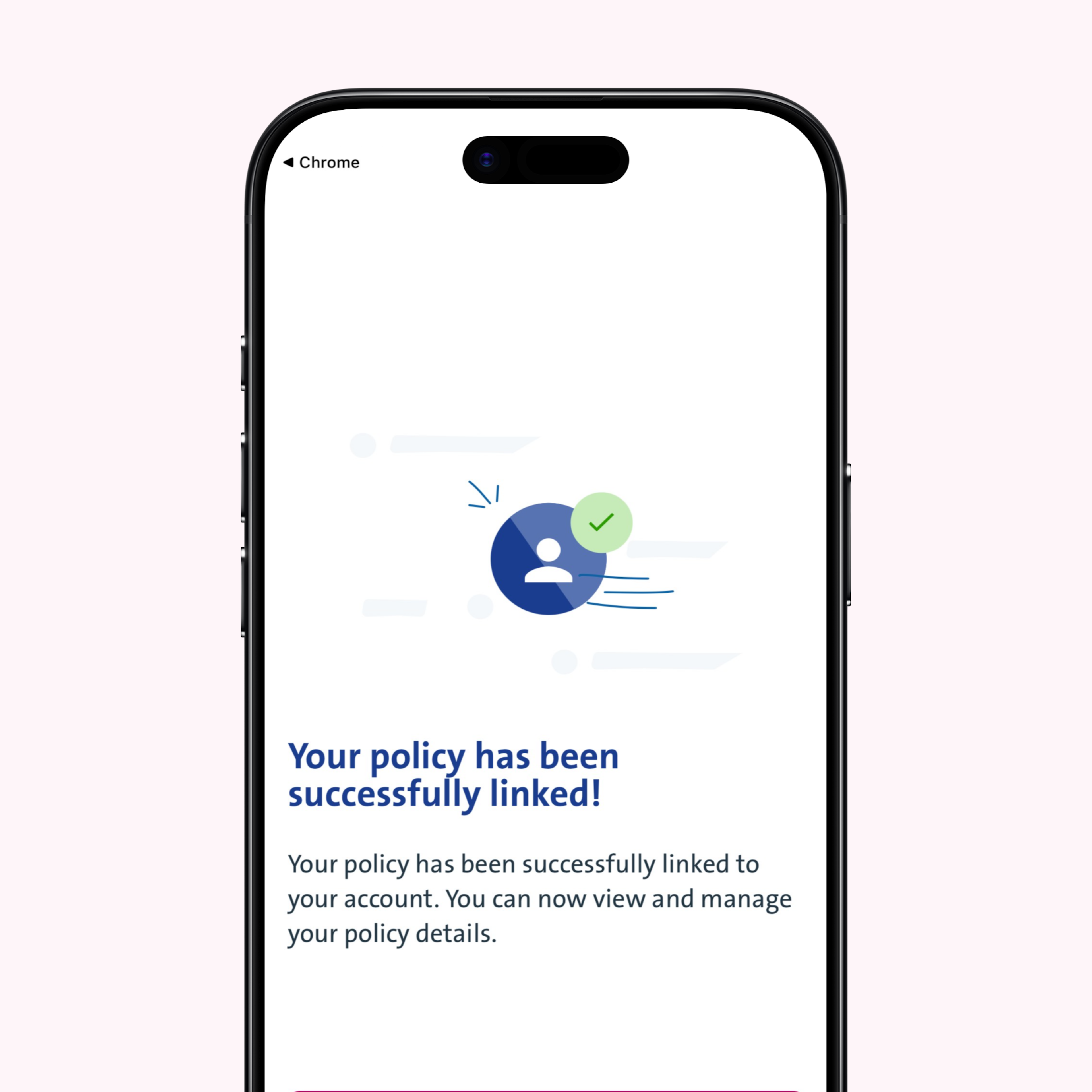
Your account has been successfully linked to your insurance policy
Your policy has been successfully linked to your account. You can now access and manage your policy information.
STEP 12
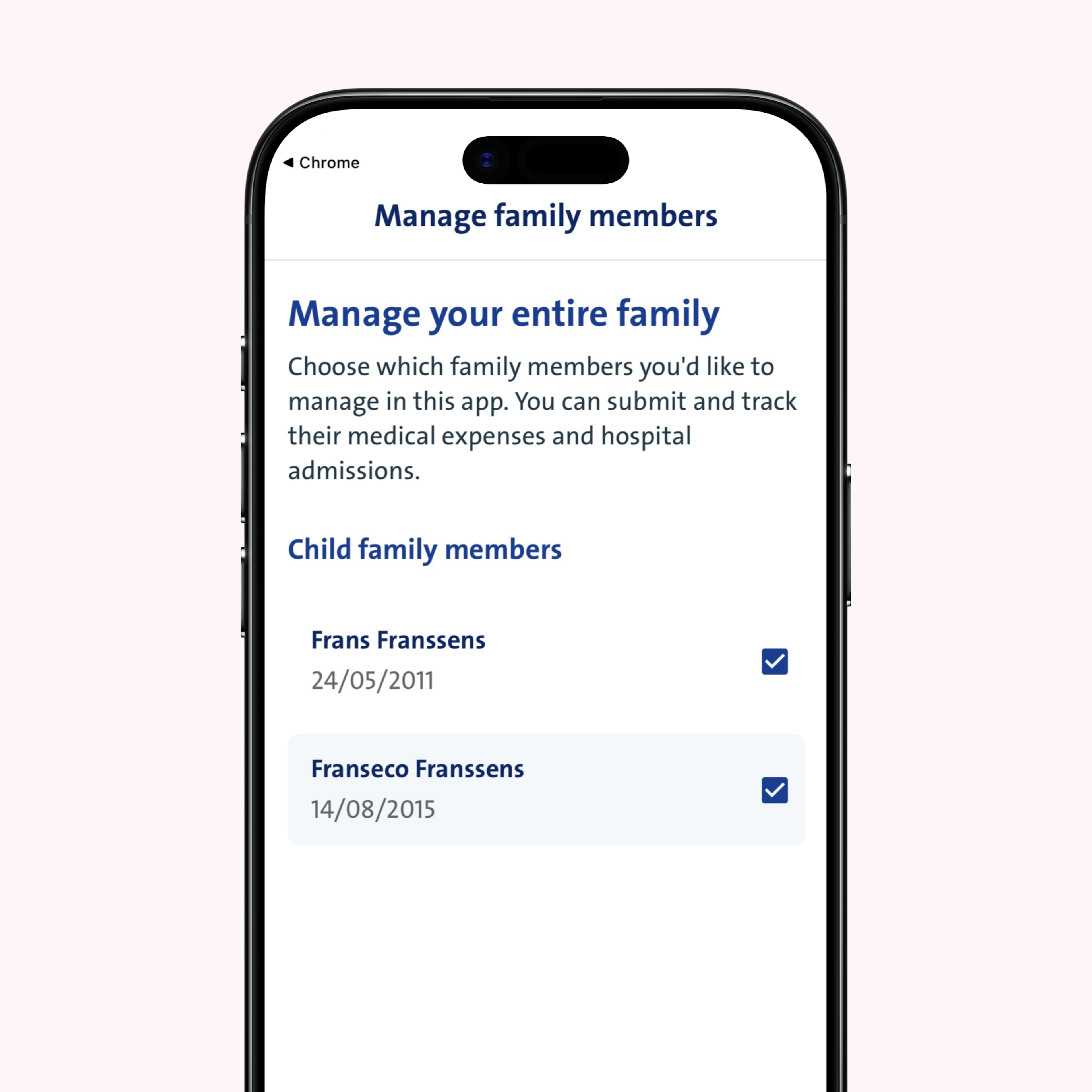
Add any family members to your profile
Once registered, you can add family members to your account and manage them. Minor children can be added to your profile directly. To add an adult family member, request their personal registration code via the app. This lets them activate their individual account and link it to your profile.
STEP 13 (OPTIONAL)
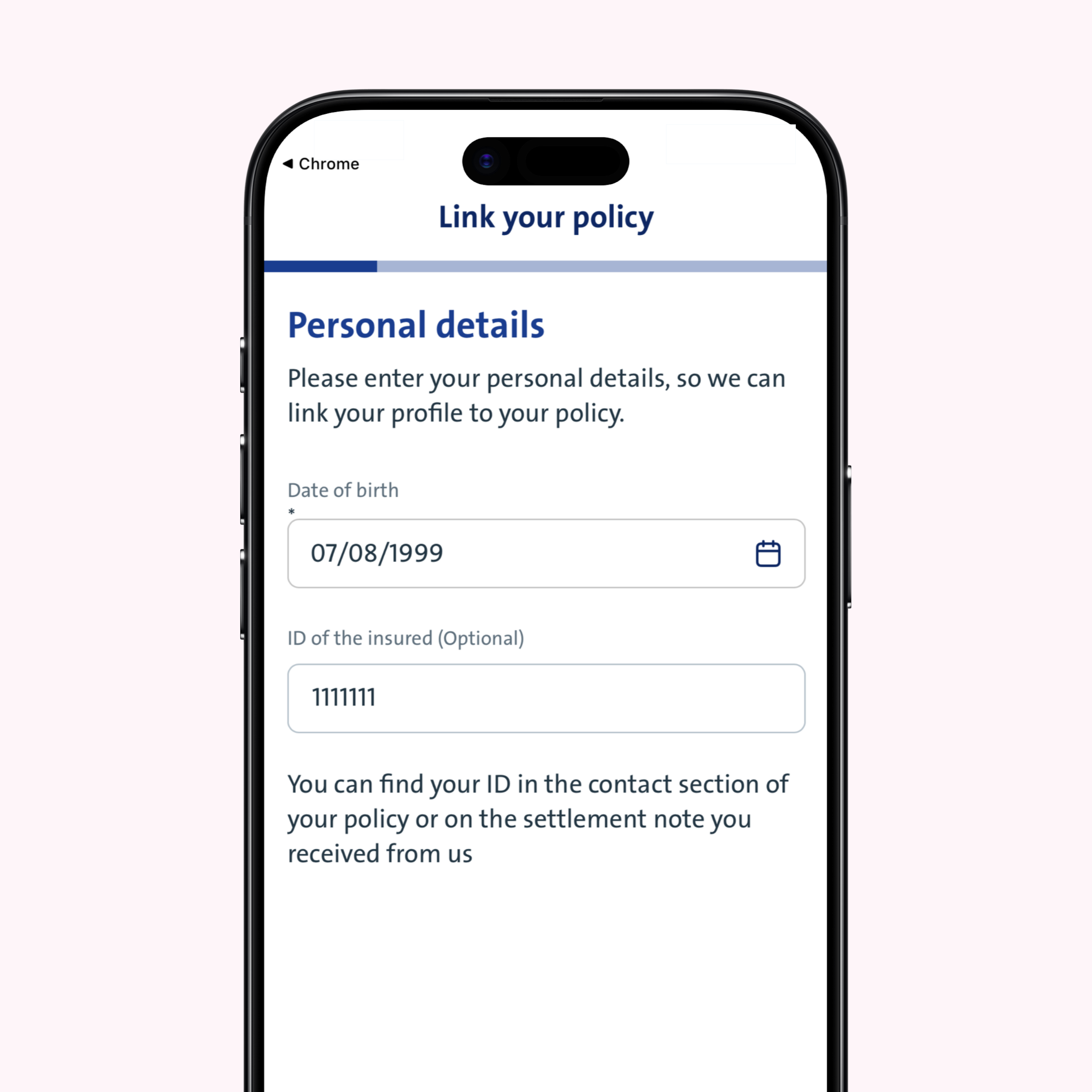
No automatic match with your existing policy?
If we were unable to link your insurance policy to your profile automatically, click or tap ‘Start onboarding’ and enter your date of birth and memberID. You’ll find your memberID in the contact section of your insurance plan or in your settlement note.
STEP 14 (OPTIONAL)
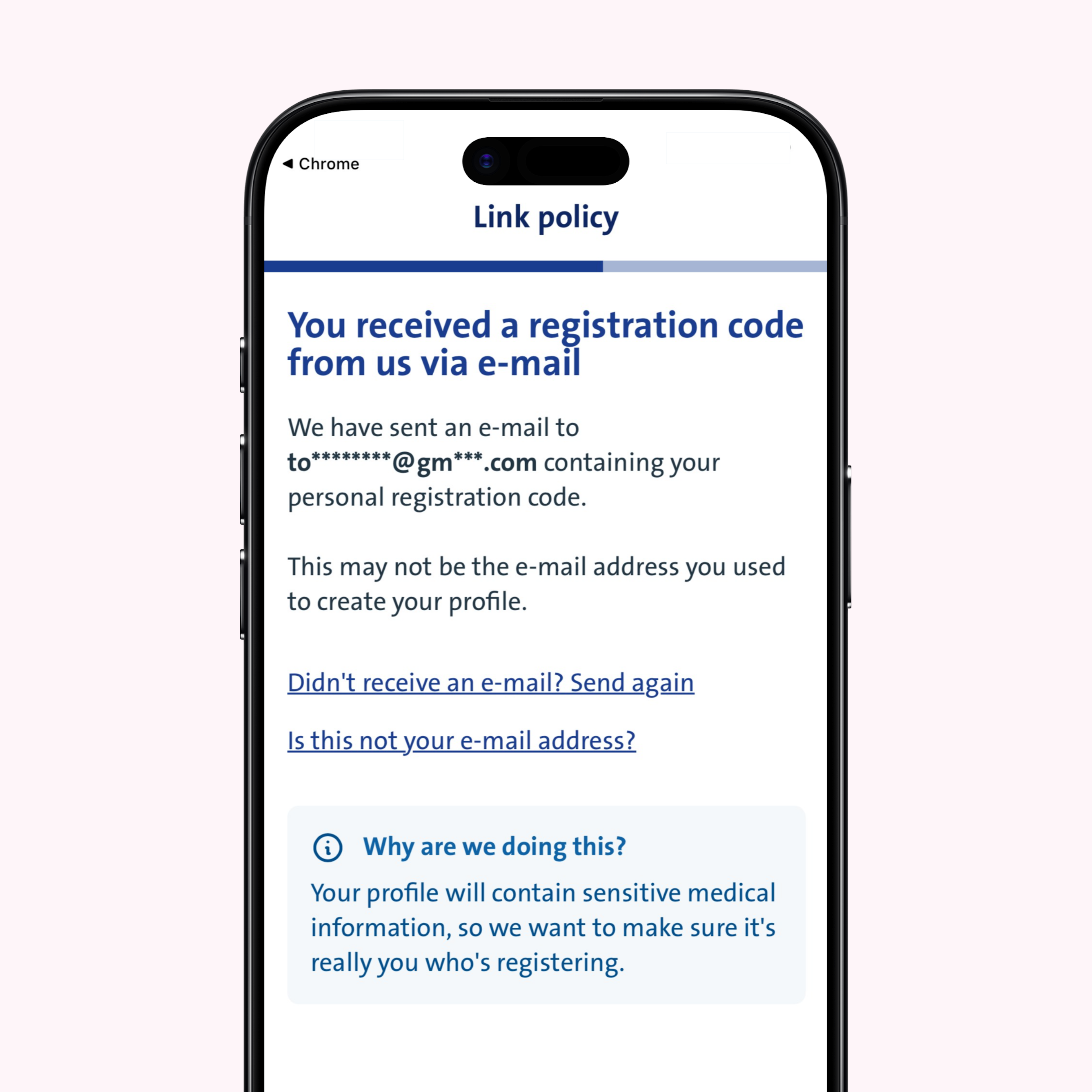
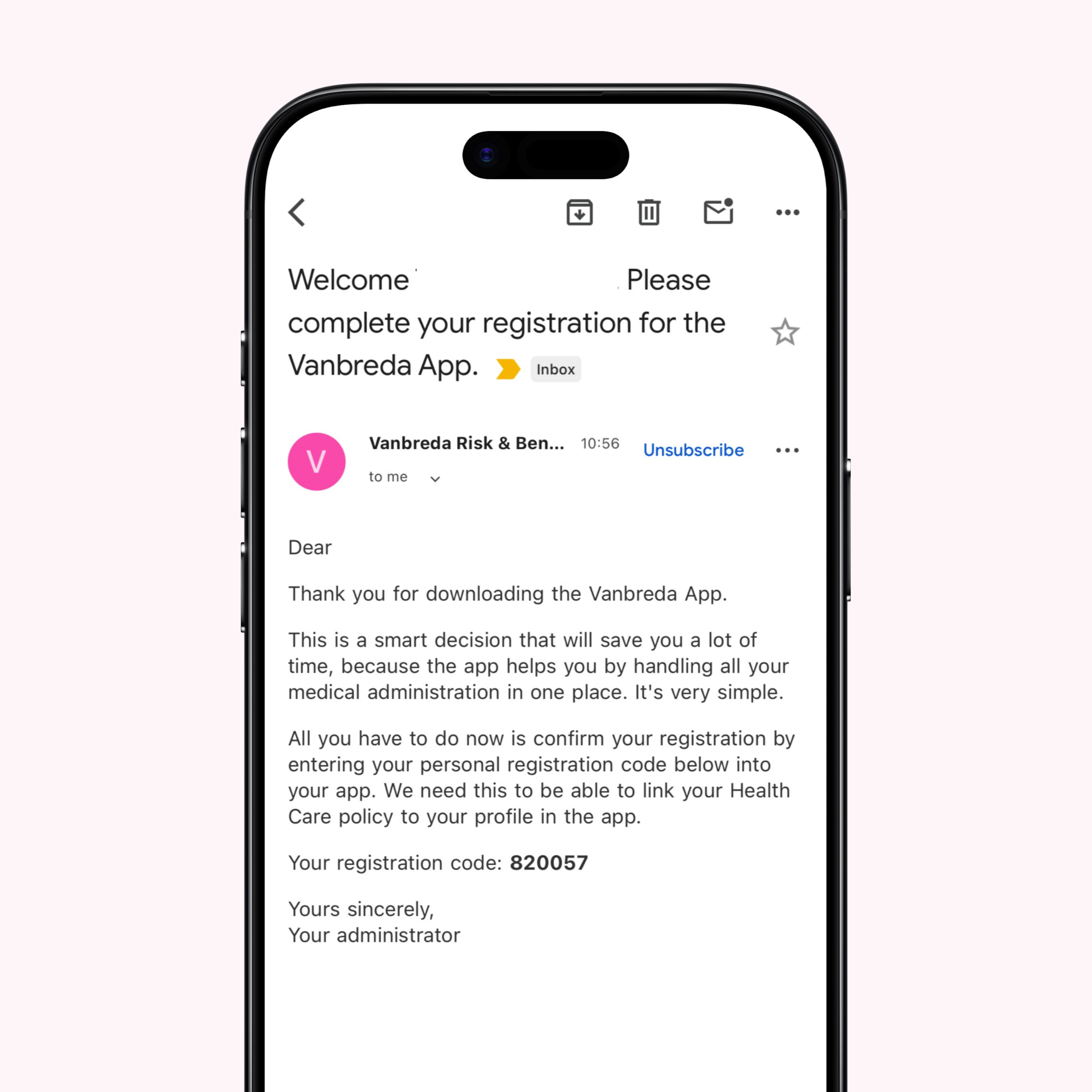
You will receive a registration code by email or post
If we already have your email address in our database, your registration code will be sent to you by email. The app will display the email address where you’ll receive your code. If we do not have your email address on file, we’ll send your personal registration code by post.
STEP 15 (OPTIONAL)
Open your email or mail
Your registration code is listed in the email or letter you received from us.
STEP 16 (OPTIONAL)
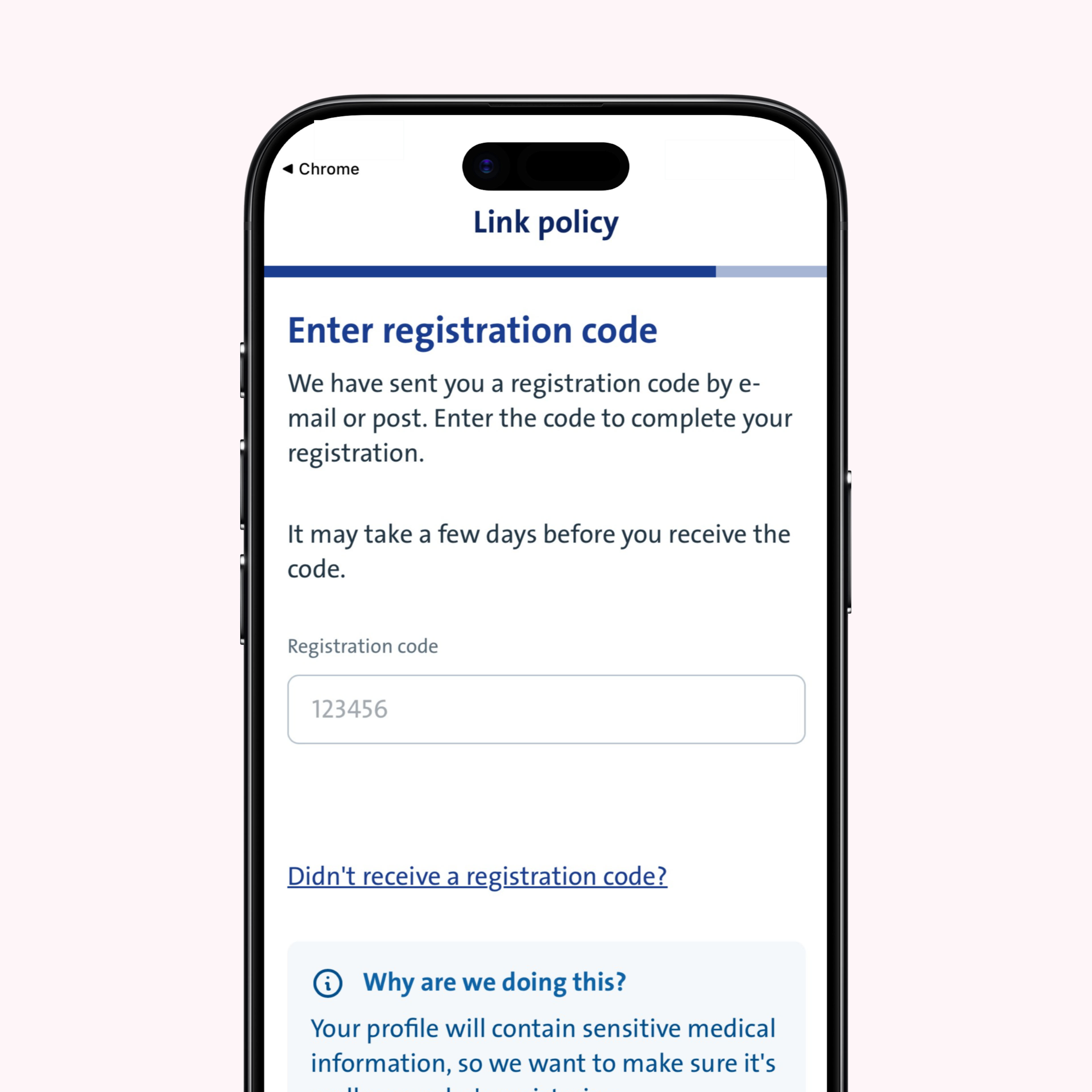
Enter the registration code on the app
Enter your personal registration code on the app to link your existing insurance policy to your account.
Return to step 10.
Questions?
Need help creating your account with itsme®? You’ll find more info at app.vanbreda.be/support. There, you can read answers to the most common questions or contact our experts directly. We’re always here to help you!