Vanbreda Account
Log in to your account and sort your expenses even faster
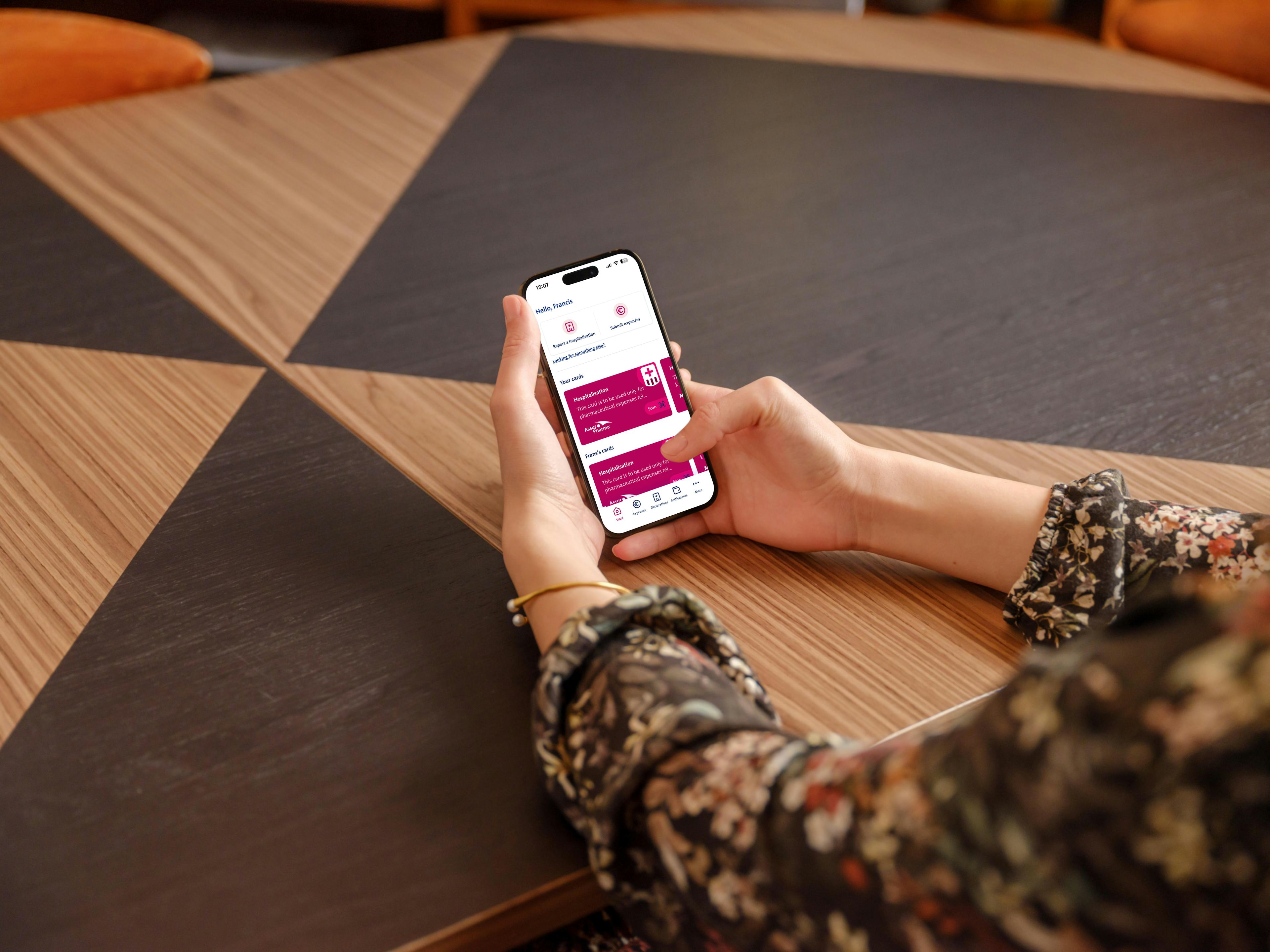
Submitting your expenses while logged in saves you a great deal of time. You can easily indicate which family member incurred which costs, without having to enter additional personal details each time.
You can also track the status of your submitted expenses and access your personal AssurPharma barcode to automatically submit pharmacy expenses for yourself and your family members. Creating an account is easy with itsme® or your email address, at app.vanbreda.be.
Step 1
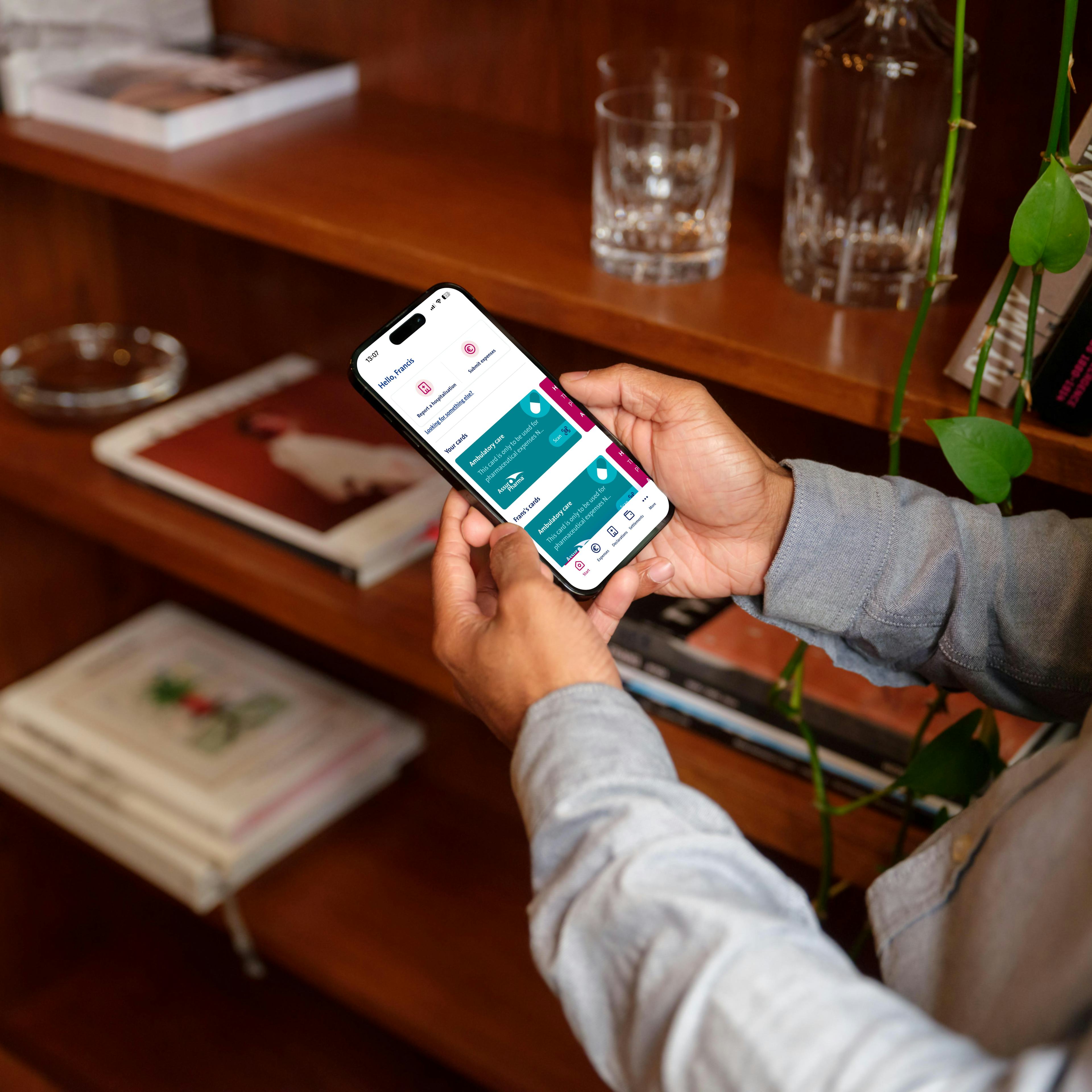
Open your Vanbreda App or the web portal
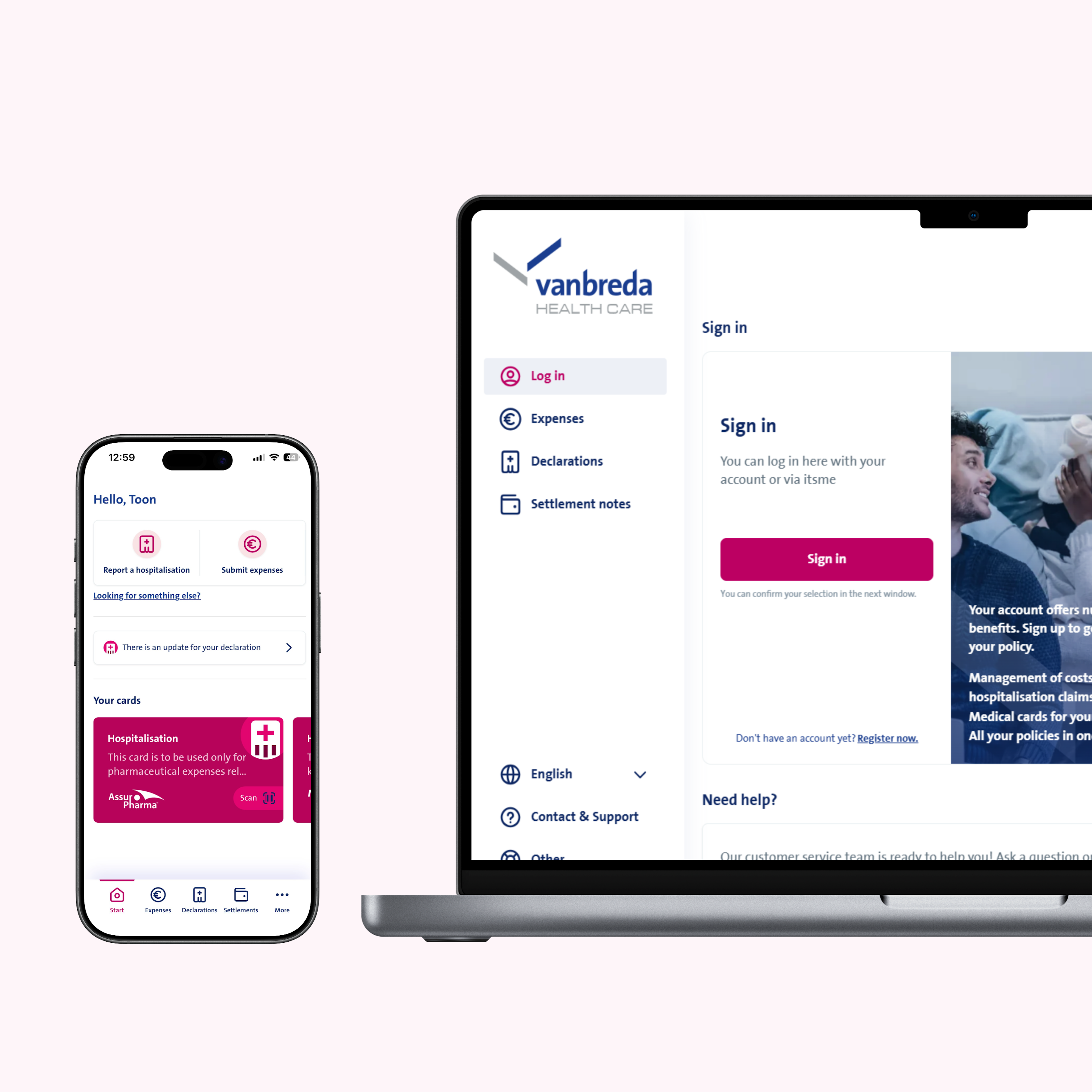
Open the Vanbreda App on your phone or go to the web portal via app.vanbreda.be. Here, you have several options:
Log in or create an account.
Submit expenses without an account. (Choose this option if you want to submit an expense without logging in).
Report a hospital admission.
Get in touch with our support desk.
en-portal-app-overview
Step 2
Upload your proof of expenses
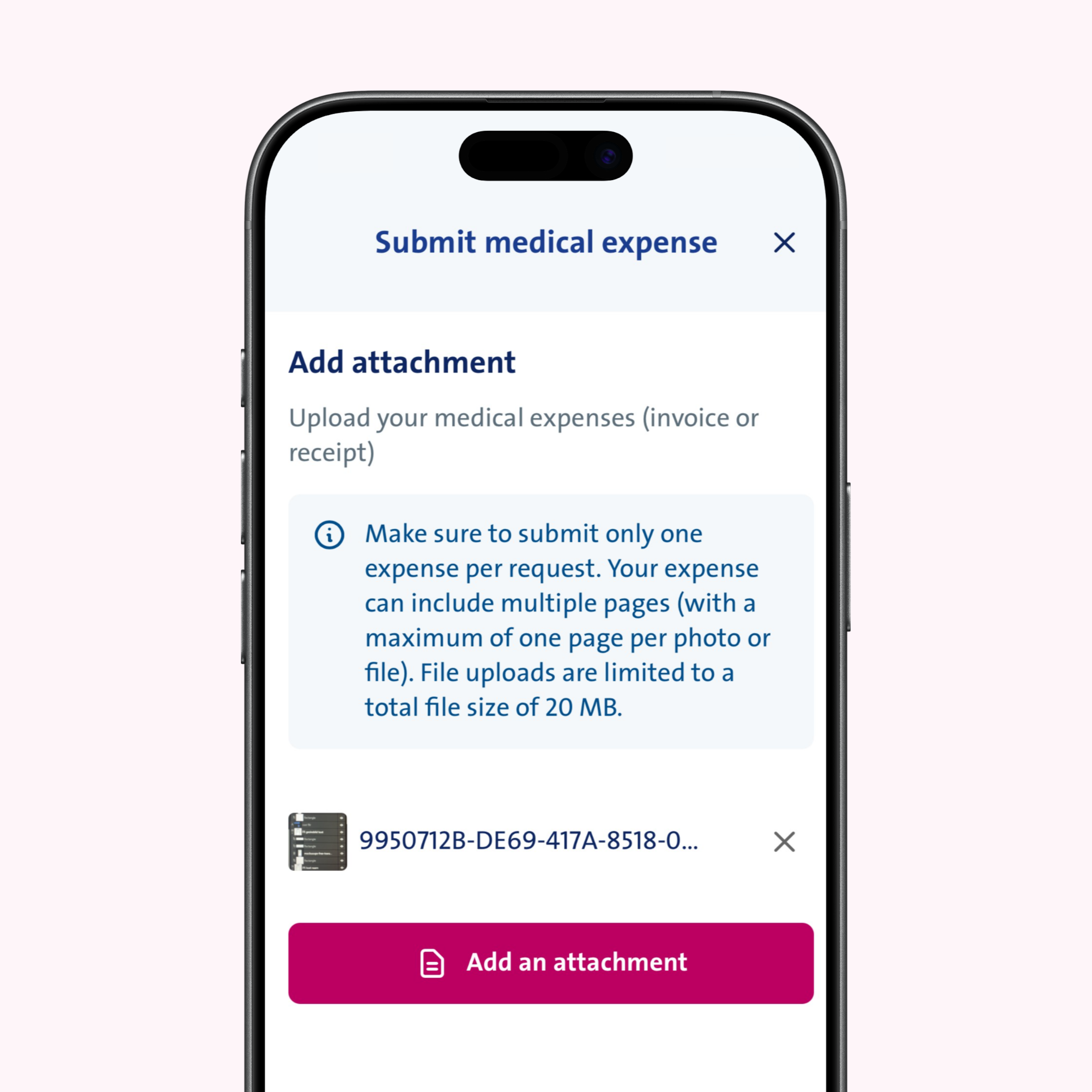
Submitting your costs is easy. Take a photo of your proof (such as a bill, receipt or invoice) using the built-in scanning feature in the Vanbreda App, or upload a photo as an attachment in the app.
Please note:
Submit only one expense per request.
The document you scan or upload may contain multiple pages (one page per photo or file).
Do not upload files larger than 20 MB.
Always provide all pages of your bill or receipt (including front and back pages, if applicable).
Step 3
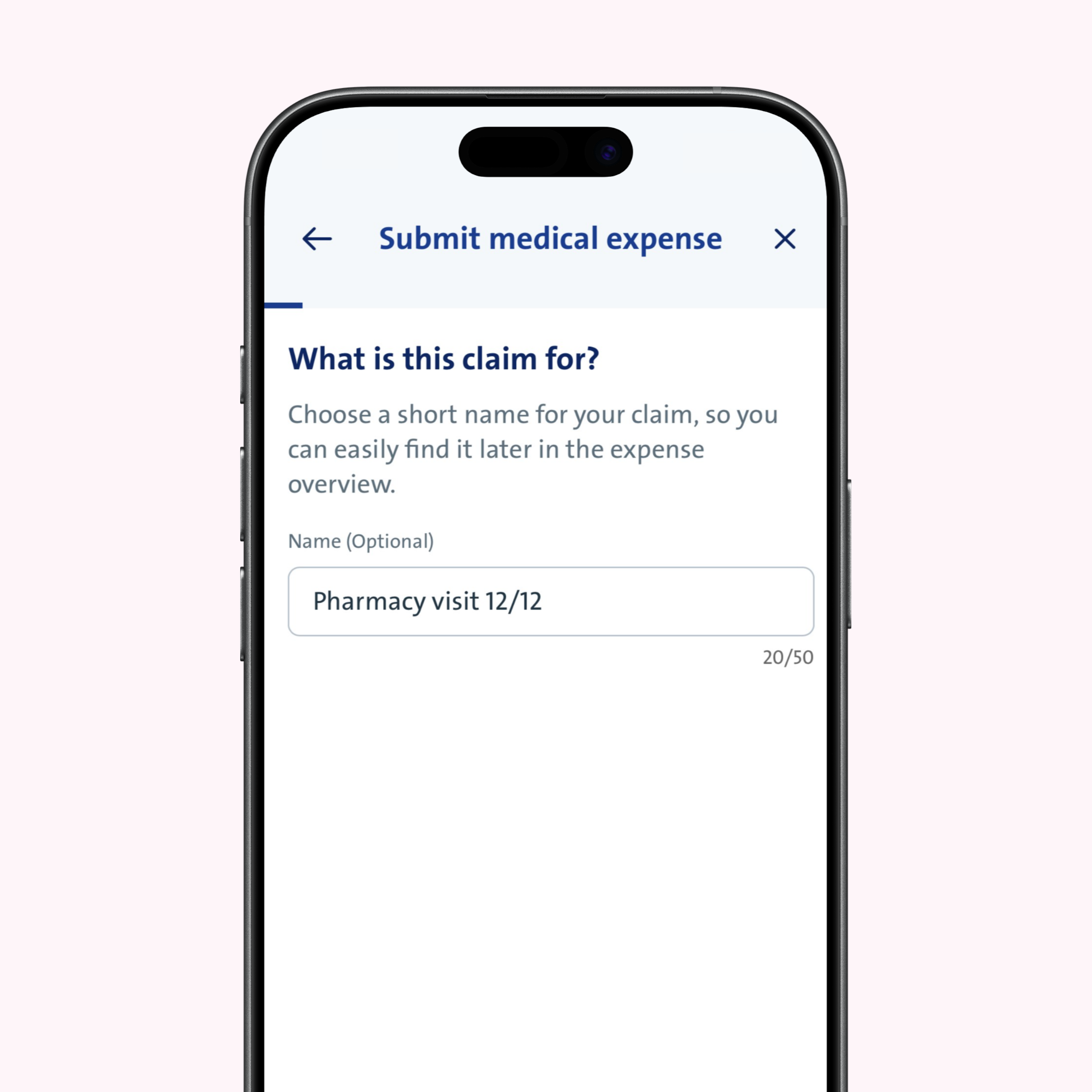
(optional) Add a file name to your expense
You can enter a file name for the attachments you upload. This helps you keep track of your documents.
Step 4
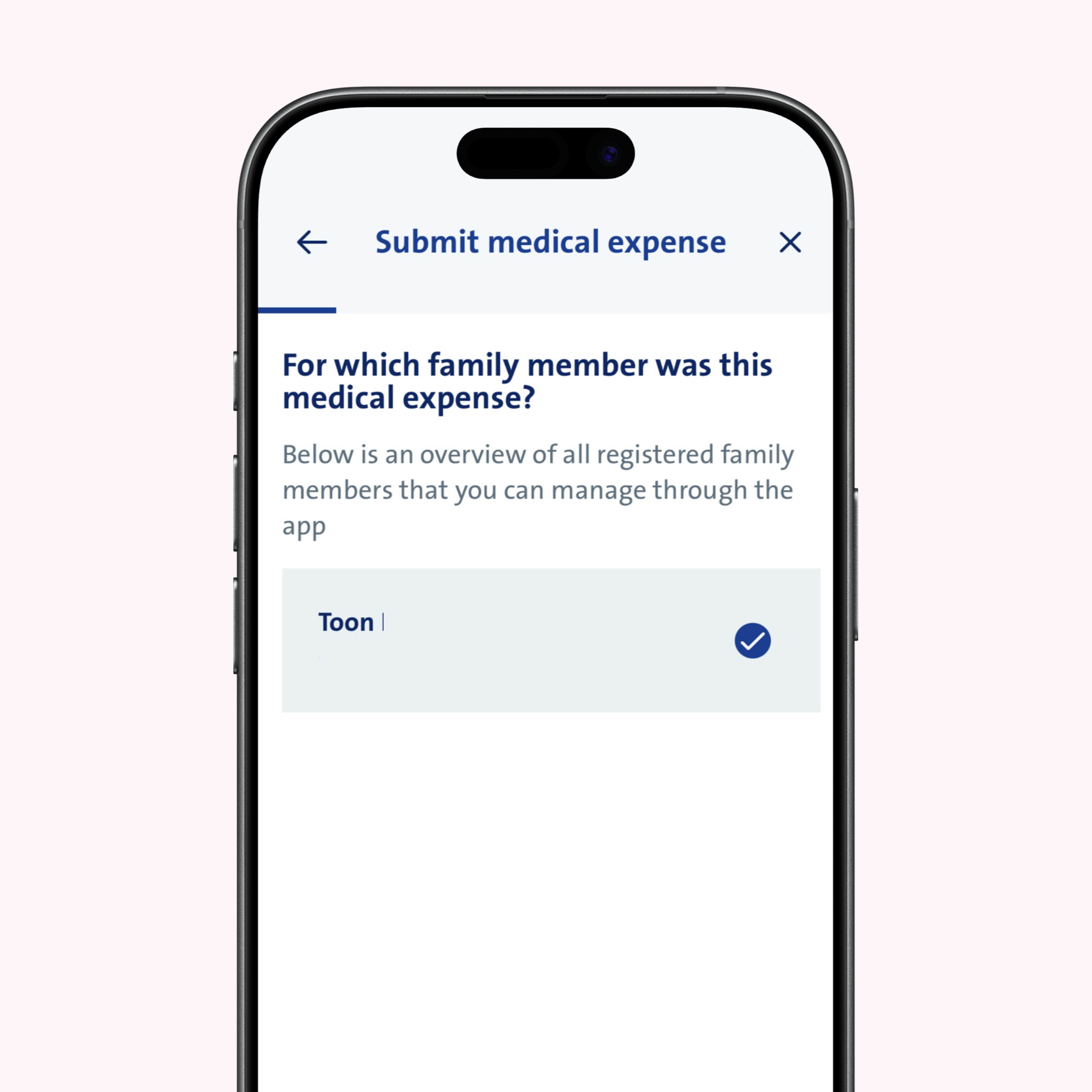
Select a family member for the expense
Indicate which family member you’re submitting the expense for. Are you logged in? Their personal details will be filled in automatically. Not logged in? Then you’ll need to enter their first name, surname, email address and date of birth.
Step 5
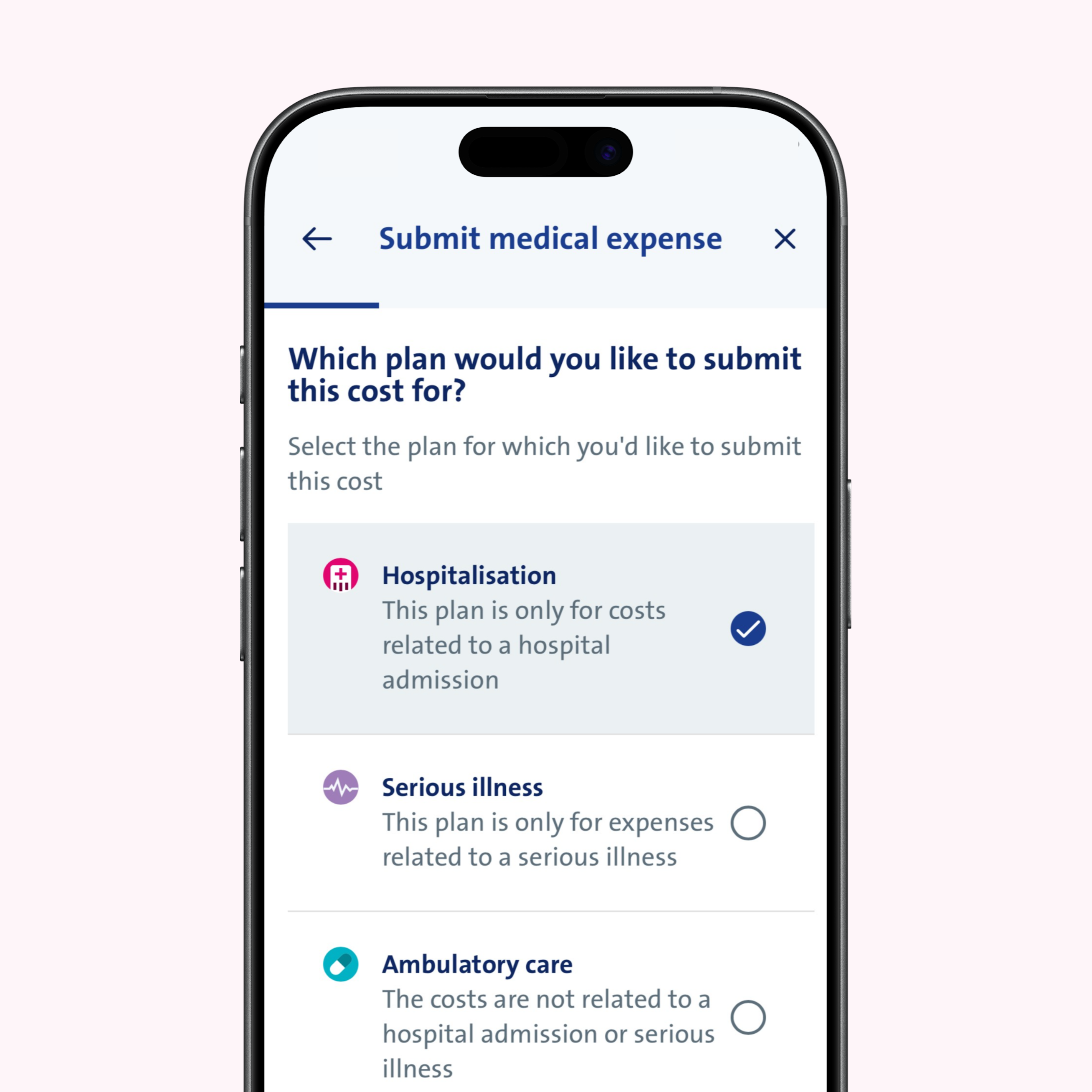
Select your plan
Choose the correct coverage type for the expense (for example: hospitalisation, outpatient care or serious illness.)
Step 6
Check your submission
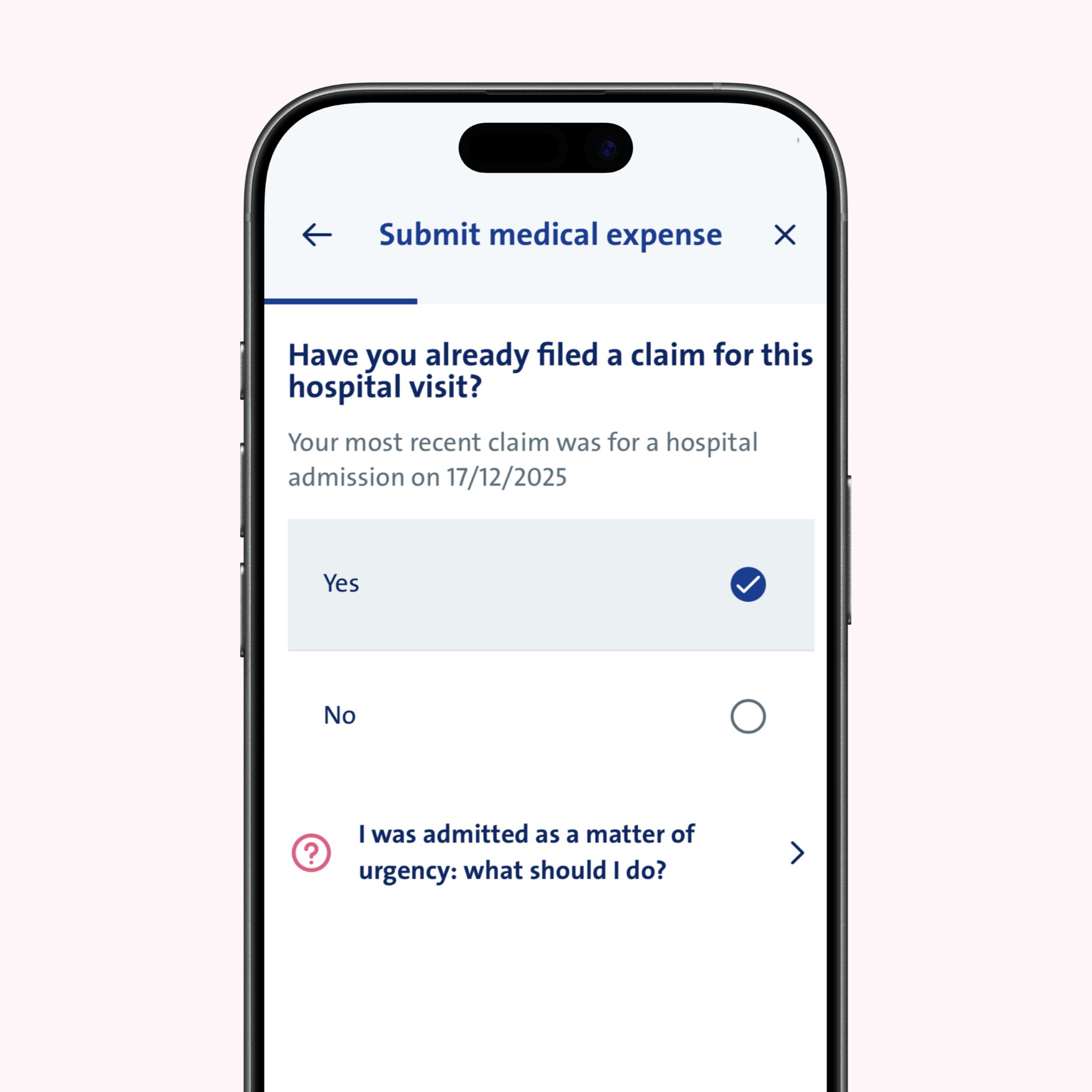
If you’ve selected ‘hospitalisation’ or ‘serious illness’ in the previous step, we’ll ask you whether you’ve already submitted this hospitalisation or serious illness. This is required in order to process your expense.
Haven’t submitted your report yet? Select ‘no’ and submit both your expense and hospitalisation or serious illness report at the same time.
Step 7
Overview and confirmation
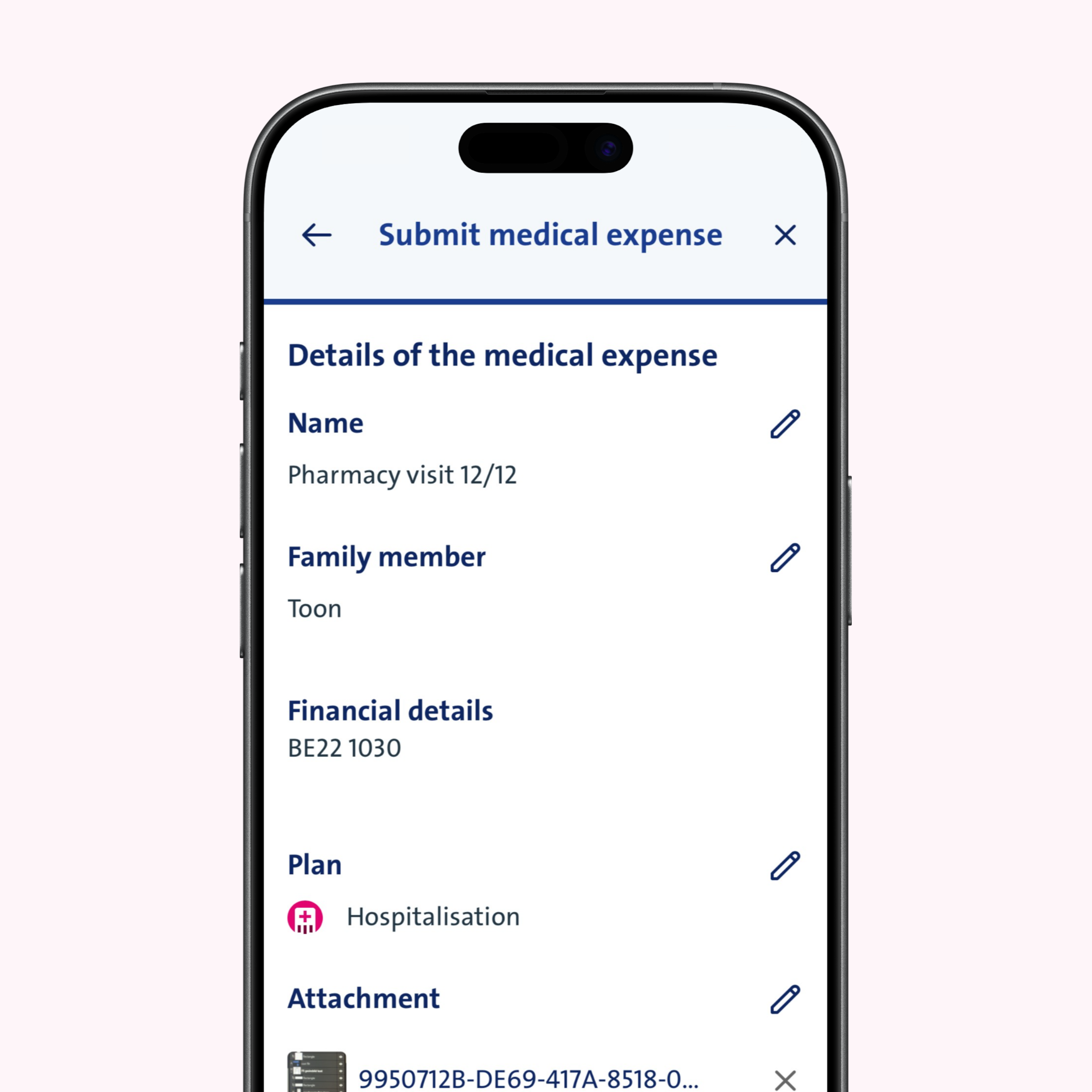
Check your information in the overview. Notice any info you'd like to change? Then click or Review your details in the summary. Want to make any changes? Click or tap the pencil icon to edit your info. Ready to submit the expense? Click or tap ‘submit expense’.
Step 8
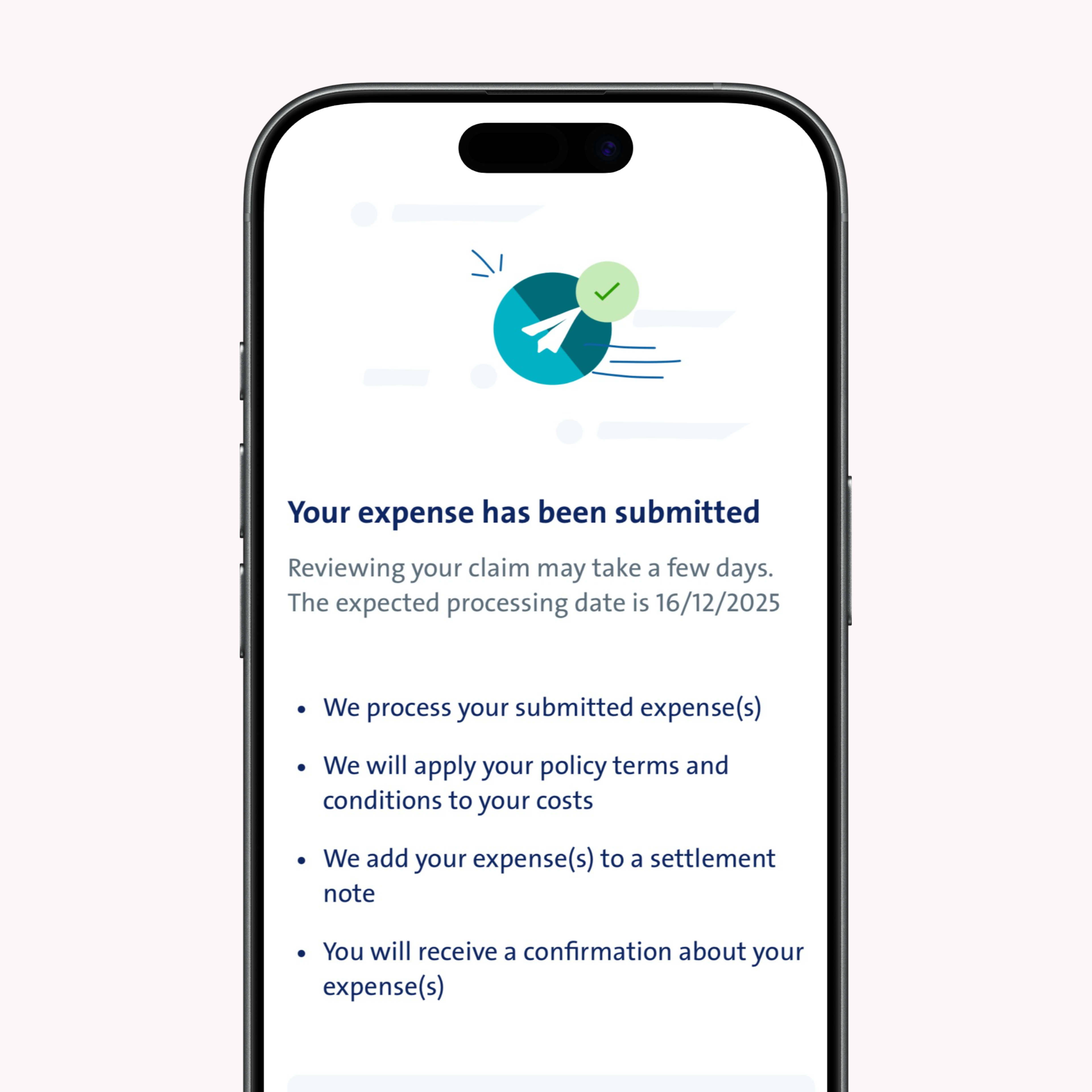
Your expense has been sent
Done! You’ve successfully submitted your expense. We’ll process it for reimbursement as quickly as possible. We’ll keep you informed of the status via the app or by email.
Step 9
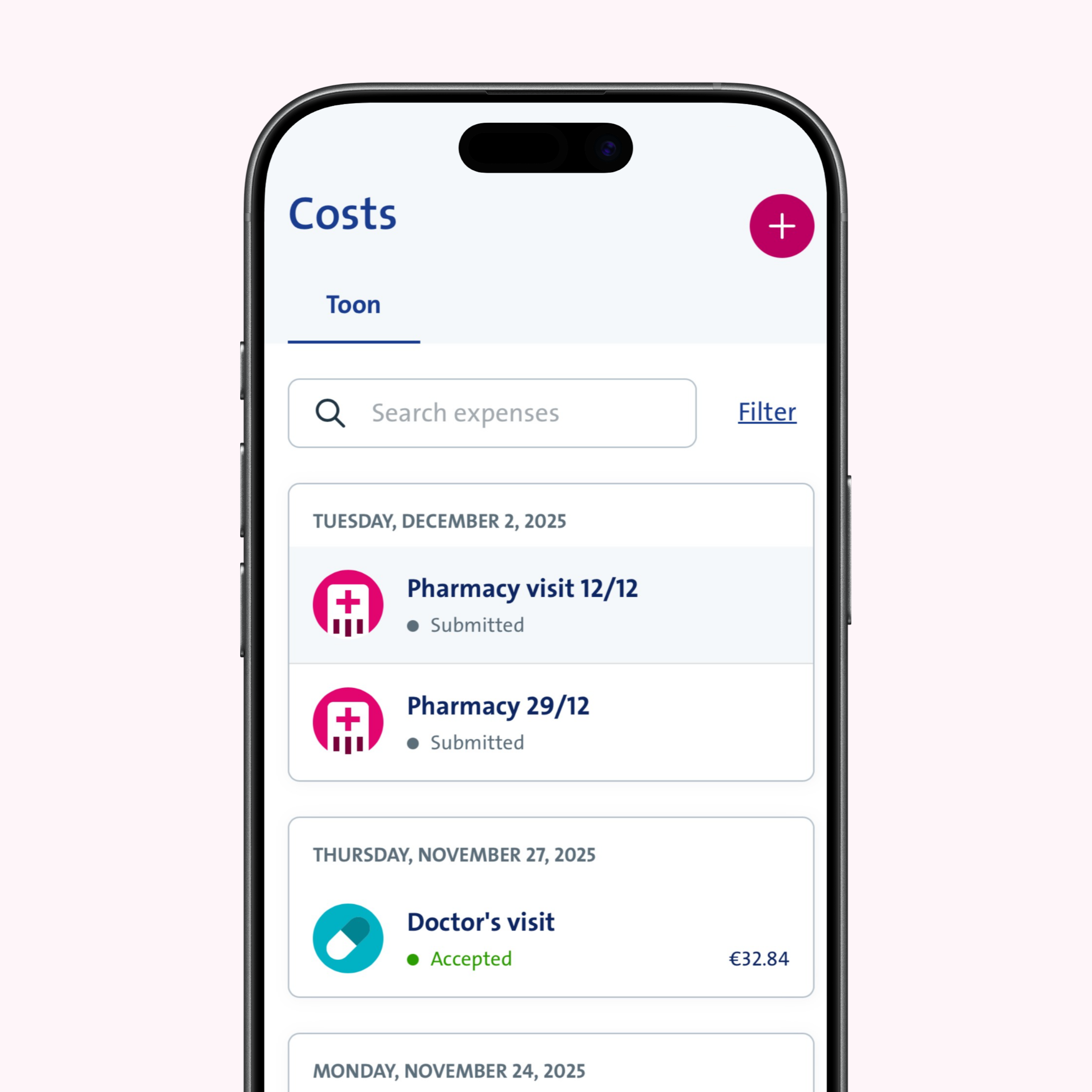
Track submitted expenses
Once we’ve processed your expense, your settlement note will appear in the Vanbreda App. Here you’ll find an overview of the expenses that are covered under your insurance policy and an overview of your reimbursements.
What about pharmacy expenses?
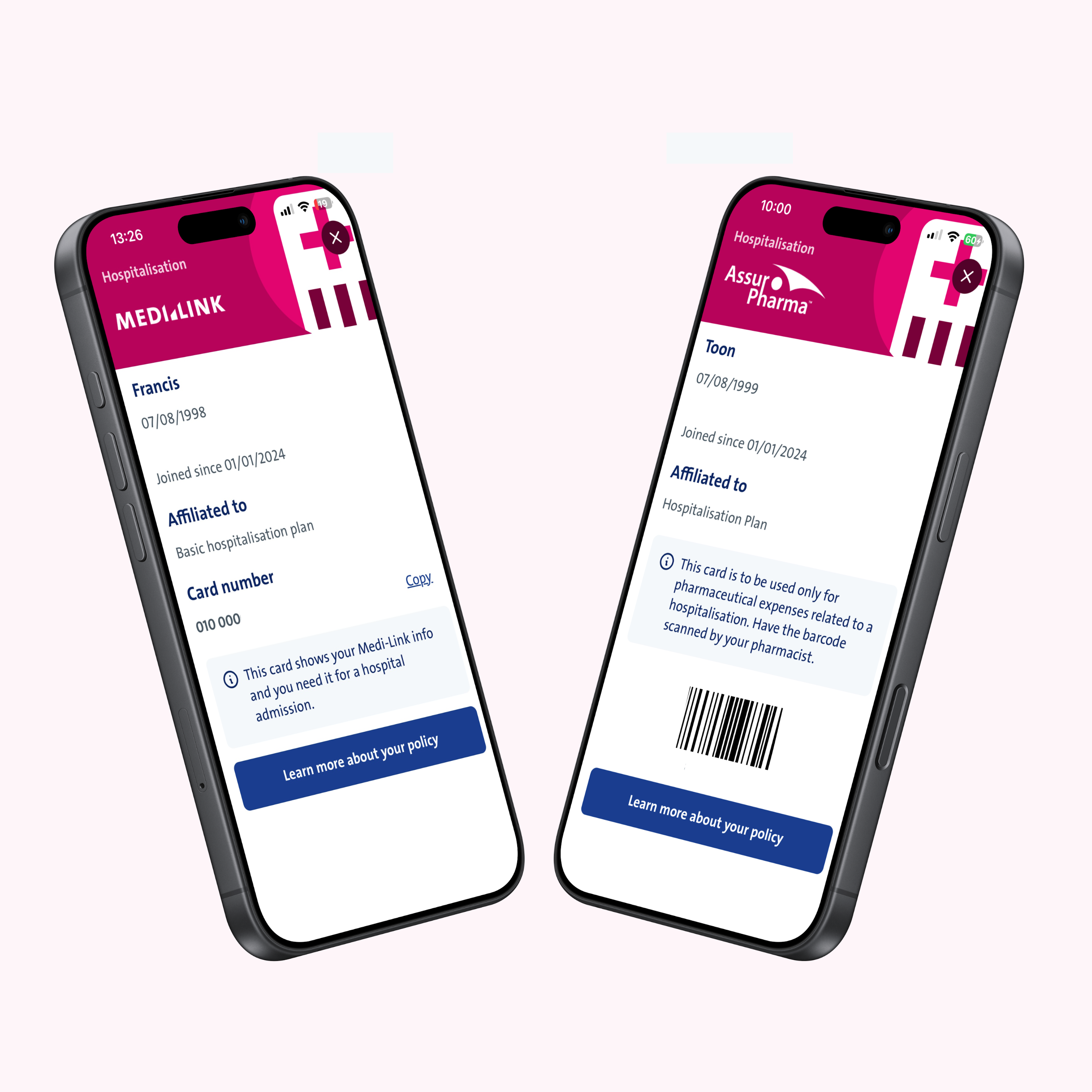
Submitting expenses for prescription medication is easy, thanks to your personal AssurPharma barcode in the Vanbreda App.
AssurPharma is the service that handles reimbursement of medication in Belgium. Simply ask your pharmacist to scan your personal AssurPharma barcode when purchasing medication. Your pharmacy receipts will then be sent to us automatically for reimbursement.
Don’t have your phone with you? Just take a photo of the BVAC certificate – the standard certificate you receive from your pharmacist when buying medication – and send it to us afterwards as proof of payment via the app or the web portal.
Questions about your settlement note?
Do you need help submitting your expenses or do you have questions regarding your settlement note? No worries! At app.vanbreda.be/support, you’ll find more info and support. You can find answers to the most frequently asked questions or get in touch with our support desk.